3/19/2019

Download iOS 12.2 Public Beta 6 (IPSW/OTA Profile)

Download iOS 12.2 Public Beta 6 (IPSW/OTA Profile)

Apple has seeded the public and developer beta updates to iOS 12.2. Here’s how you can get these updates for iPhone and iPad.
WHAT’S NEW IN IOS 12.2 BETA 6?

The size of iOS 12.2 Beta 6 update is a mere 120MB, yet it packs quite a lot of new features and user interface enhancements. Its build number is 16E5227a.

Here is the complete list of changes that this version brings –


A new warranty section in Settings > General > About. It displays the time left for the device’s warranty to expire.


Addition of Apple Care to the Settings app.


In spite of all its features, it comes with its fair share of bugs. For instance, some users have reported that iMessage messages are displaying random contacts instead of actual contacts.

You can get this update for your Apple device using the download links given below. If, however, you own a paid developer account, downloading and installing this version from Apple Developer Center is recommended.
IOS 12.2 BETA 6 DOWNLOAD
OTA PROFILE


Download
IPHONE


iPhone SE, iPhone 5s


iPhone 6s, iPhone 6


iPhone 6s Plus, iPhone 6 Plus


iPhone 8, iPhone 7


iPhone 8 Plus, iPhone 7 Plus


iPhone X


iPhone XS


iPhone XS Max


iPhone XR
IPAD


iPad Air, iPad mini 2


iPad mini 4, iPad Air 2, iPad mini 3


iPad (5th generation), iPad (6th generation)


Pro iPad (9.7-inch)


iPad Pro (12.9-inch)


iPad Pro (10.5-inch), iPad Pro (12.9-inch) (2nd generation)


Pro iPad (11-inch), iPad Pro (12.9-inch) (3rd generation)
IPOD


iPod touch (6th generation)
SHOULD YOU UPGRADE YOUR DEVICE?

With the release of the sixth beta, we’re definitely inching closer to the GM build. Judging by the build number of the current update, it’s highly likely that Apple will seed another beta sometime during the next week.

Therefore, it’s better to hold off an update for a week or two so you can move straight onto the final Golden Master build.

Nevertheless, you can update your device right now if you want the aforementioned features on your iPhone or iPad right now.

Also Read:jihosoft Free iPhone Data Recovery

Sponsor ads:

Gihosoft Free iPhone Data Recovery:https://www.gihosoft.com/iphone-data-recovery-free.html

Gihosoft iPhone Data Recovery Free

Free iPhone Data Recovery Software for Windows/Mac

Recover up to 12+ types of files, including contacts, SMS, photos, WhatsApp, Viber, notes, etc.

Restore lost data from iOS devices directly or from iTunes and iCloud backup

Recover iPhone data lost due to iOS upgrade/jailbreak, accidental deletion, device lost or broken

Support all the latest iPhone, iPad and iPod Touch

Both Free and Pro version.


If you lost data after you updated to a new iPhone, you can always use Gihosoft iPhone Data Recovery to get the data back from the old iPhone or backup.You may also like: iphonerecovery.com

3/17/2019

6 Android Q Betas Planned By Google; Stable Release In Q3


Following numerous rumors and speculations, Google has finally made its next-gen Android Q operating system official, by releasing its first beta. In addition to this, Google has provided a timeline of all the beta versions before the OS goes official for the general public.

Android Q Beta will comprise six beta programs, starting today and until Quarter 3 of 2019 (preferably in August 2019) when Android Q will be available to all.

Beta 1 is the first release that has been introduced, followed by Beta 2 (incremental update), Beta 3 (another incremental update), and Beta 4 (inclusive of final APIs and official SDK) expected to be released in April, May, and June, respectively.

Beta 5 and Beta 6 involve candidate releases for testing and will be available in Q3, 2019. Following this, the final version of Android Q will be made available to the users.

Under the beta program, the first three beta versions are aimed at helping users figure out the device and app compatibility with the new OS, while the Beta 4 lets users access the final APIs and SDK.


Lastly, beta 5 and 6 will provide beta users with the release candidate builds.

As a reminder, the beta program is presently available for Google Pixel family users(Pixel, Pixel XL, Pixel 2, Pixel 2 XL, Pixel 3, and Pixel 3 XL).

Additionally, to get hold of the beta program, users can either download the factory image and flash or manually sign up for the beta program.Also Read:jihosoft Free iPhone Data Recovery

Sponsor ads:

Gihosoft Free iPhone Data Recovery:https://www.gihosoft.com/iphone-data-recovery-free.html

Gihosoft iPhone Data Recovery Free

Free iPhone Data Recovery Software for Windows/Mac

Recover up to 12+ types of files, including contacts, SMS, photos, WhatsApp, Viber, notes, etc.

Restore lost data from iOS devices directly or from iTunes and iCloud backup
Recover iPhone data lost due to iOS upgrade/jailbreak, accidental deletion, device lost or broken

Support all the latest iPhone, iPad and iPod Touch

Both Free and Pro version.

If you lost data after you updated to a new iPhone, you can always use Gihosoft iPhone Data Recovery to get the data back from the old iPhone or backup.You may also like: iphonerecovery.com

6 Best Bus Ticket Booking Apps for Android in India


Best Bus Ticket Booking Apps for Android in India:


RedBus


MakeMyTrip


Yatra


PayTM


AbhiBus


Goibibo
1. RedBus

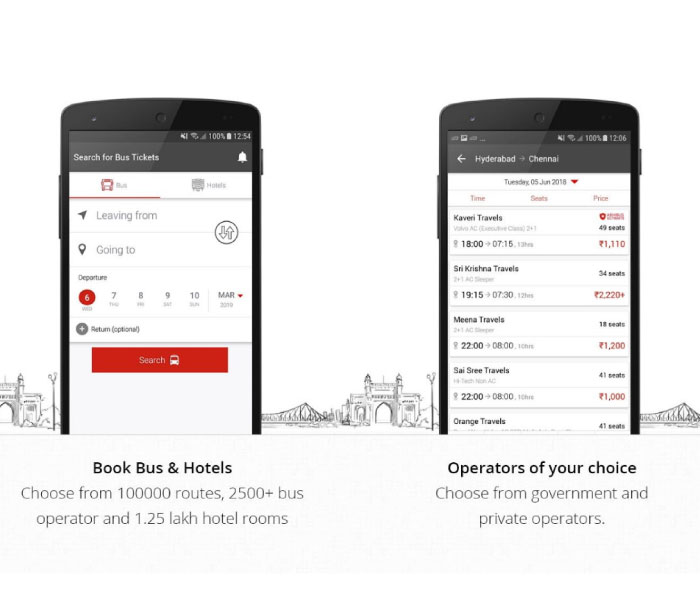
RedBus is assuredly one of the best Bus ticket booking apps in the field with a total of 10 million + downloads from the google play store.

It allows users to search and find all available buses and its details in your required locations. One can simply complete the ticket booking process at a glance using the one-touch secure payment provided.

The app has almost 2,300 bus operators including governmental services as well as private services. It also delivers features such to cancel booked ticket in case of any inconvenience and live bus tracking option to get live updates about the bus.


Main Features:


Filter & Search


One-Touch Payment


Cancellation policy

Download RedBus
2. MakeMyTrip

MakeMyTrip is yet another well-known app for travel ticket bookings. The app helps users to search and find a suitable bus for the required journey from around 1,300 of available bus operators.

The app also features services such as flight ticket booking, hotel booking, IRTC railway ticket booking, Cabs etc. Users can either use the MakeMyTrip app or Website to use these services.


Main Features:


Choose from different operators


Discount offers


Hotel, IRTC bookings and more

Download MakeMyTrip
3. Yatra

As the name suggests, the app is all about travel bookings. Yatra provides a wide variety of bus services to choose from according to your budget and necessities.

Other than Bus bookings, the app also supports Flight ticket bookings, Hotel bookings and cab, Train ticket bookings etc. Payments can easily be done using the app itself through a secured payment gateway.

Users referring their friends gets eCash in return, which can be used to claim discounts on a variety of services featured by the app.


Main Features:


Numerous services


Secured payments


Earn eCash for discounts

Download Yatra
4. PayTM

We have already covered a lot about PayTM app and its features in several articles. For your information, PayTM is also a well-known app for travel ticket bookings too. Users can choose the right travel partners from the provided list according to their interests.

One can simply search and filter to find buses of your choice and easily make payments either using your bank account or your PayTM wallet money. The app also has a lot of discount coupons, promo codes, cashbacks and many more to offer.


Main Features:


All in One app


Variety of operators


Cashbacks, discounts and more

Download PayTM
5. AbhiBus

AbhiBus is one of the easiest apps among all these bus ticket booking apps. Users can merely choose required bus services from 2,500 different bus operators featured which include both governmental as well as private services.

One can simply sign up to AbhiBus using a Facebook or Google Account. The app ensures a secure payment gateway along with an option for easy ticket cancellation.


Main Features:


Easy login


More than 2500 operators


AbhiCash for discounts

Download AbhiBus
6. Goibibo

With a total of 10 Million users, Goibibo simply provides hassle-free ticket trip booking service at any moment. Users can book bus tickets, flight tickets, hotel, IRTC train tickets etc.

The app gives Rs.100 GoCash for every new user login which can be used to claim discounts on any service offered in the app. Goibibo also gives the option to track your bus in order to get its live location and status.


Main Features:


Flawless experience


Track your bus


GoCash discount

Download Goibibo

These were our top picks for the best bus ticket booking apps for your Android device. If you liked the content don’t forget to share it with your friends.Also Read:jihosoft Free iPhone Data Recovery

Sponsor ads:

Gihosoft Free iPhone Data Recovery:https://www.gihosoft.com/iphone-data-recovery-free.html

Gihosoft iPhone Data Recovery Free

Free iPhone Data Recovery Software for Windows/Mac

Recover up to 12+ types of files, including contacts, SMS, photos, WhatsApp, Viber, notes, etc.

Restore lost data from iOS devices directly or from iTunes and iCloud backup

Recover iPhone data lost due to iOS upgrade/jailbreak, accidental deletion, device lost or broken

Support all the latest iPhone, iPad and iPod Touch

Both Free and Pro version.

If you lost data after you updated to a new iPhone, you can always use Gihosoft iPhone Data Recovery to get the data back from the old iPhone or backup.You may also like: iphonerecovery.com

3/12/2019

Buying iCloud Locked iPhone and iCloud Solutions

Buying iCloud Locked iPhone and iCloud Solutions
Part 1. What Does It Mean to Buy iCloud Locked iPhone?

Let’s say you wanted to buy a good, used iPhone. After searching for a nice one, you finally find it; the phone looks neat, precisely what you had in mind. You then try to turn it on, and you are greeted with a bold message telling you that this beautiful phone is iCloud locked or Activation locked. This is usually a red flag.

Meeting iCloud Activation Lock or iCloud Lock on an iPhone for sale, what comes into your mind first is that the phone was stolen. However, not all locked iPhones are stolen phones; some iPhone owners merely forget to log out or remove their iCloud account from the iPhones via Find My iPhone before selling the phones. Some iPhone is just locked by an iCloud account but you still can access to it. But you can’t enjoy most of the iCloud features cause you don’t have the password of it. Without proper software to remove iCloud account on activated device, it’s OK to buy iCloud locked iPhone.
Part 2. Before You Buy iCloud Locked iPhone

First and most importantly, before you buy iCloud locked iPhone, you must find out from the seller if the iPhone was stolen or not. It is never a good idea to purchase a stolen item, especially an iPhone, because, amongst other things, the owner can track you down through Find My iPhone. Finding you is a whole different story because you wouldn’t even be able to use the iPhone in the first place.

If the iPhone is not stolen, ask the seller to contact the original owner of the iPhone, so that he/she can sign in to Find My iPhone with their Apple ID and turn off Find My iPhone and the Lost Mode.


The original owner can unlock the iPhone in some other ways, which include visiting an Apple Store and asking them to remove whatever lock is there. Confirm that the lock has been removed before you buy any iCloud locked iPhone and make sure that they have erased all the content and settings on it.


Part 3. After You Buy iCloud Locked iPhone

If the seller cannot contact the original owner of the iPhone, you can still bypass the issue with alternatives. If you can use the phone, and it is locked only with iCloud, you can remove the Apple ID with a robust program called iMyFone LockWiper. If you have already purchased the locked iPhone, it’s not the end of the world; this program will also help you remove any associated Apple ID from the iPhone.

iMyFone LockWiper is a robust software designed for bypassing or removing passwords and locks from Apple devices, including iPhones, iPads, and iPod touch. Not only does it support all Apple devices, but this powerful program is also compatible with all iOS versions. What you will absolutely love about iMyFone LockWiper is its intuitiveness and ease of use.Also Read:8 Best To-do List Apps for Your iOS Device to Make Your Work Done
Also Read:Windows 10 Blue Light Filter: Learn Something about Your Eyes Saver

Also Read:Top 5 Best Free File Recovery Software 2019 for Windows and Mac

Also Read:18 Best Indian Web Series on YouTube You Can’t Miss 2019

3/06/2019

How to Backup iPhone Photos in iOS 12 2019


Free Plan A: Backup Photos from iPhone with Windows Photos App

It is possible to back up your iPhone photos to your Windows PC. All you have to do is connect your iOS device to the Windows PC and use the Windows Photo App to import the pictures to your computer. Below, we show you how to backup photos from iPhone using the Windows Photos App:

Step 1: Download the latest iTunes version. To import your photos from your iOS device to your PC, you need to have iTunes 12.5.1 and above on the computer.

Step 2: Connect your iOS device to the PC using a USB cable. If you are asked for a passcode or to Trust This Computer, follow the onscreen instructions.

Step 3: On your Windows 10, tap the Start button and then choose Photos to launch the Photos app. Then, Choose Import -> From a USB Device.


Free Plan B: Backup Photos from iPhone with AutoPlay

This method works best for Windows 7 and 8. If you are on Windows 10, using the Photos App will work better. To learn how to backup photos from iPhone using AutoPlay on Windows 7 and 8, follow the steps outlined below:
On Windows 7

Step 1: Connect your iOS device to your PC. On AutoPlay, tap “Import pictures and videos”.

Step 2: On the Window that appears, tap the Import Settings link. On the next page, change the folder to which you want your Camera Roll pictures to be imported to by simply tapping Browse next to “Import to” field.

Step 3: After choosing your import folder, tap OK and then choose a tag if you want to. Tap the Import button.
On Windows 8

Step 1: Connect your iOS device to the PC using a USB cable. If asked to Trust This Computer, follow the onscreen instructions.

Step 2: Open “This PC” and then right-click on your iOS device. Select “Import pictures and videos”.

Step 3: Choose “Review, organize, and group items to import” if this is the first time you are importing photos. Choose “Import all new items now” if you had transferred photos from your iPhone before. Tap Next.

Step 4: Click the “More Options” link to select the folder where you wish to import photos. Tap OK and then click the Next button.

Step 5: Choose the photo groups you wish to import and then tap the Import button.


Free Plan C: Backup Photos from iPhone to iCloud Photo Library

Apple offers its iOS device users iCloud as a method for backing up their data. This service comes with a free basic plan that offers users a free 5GB storage space. When this free storage space becomes full, users have to upgrade. To learn how to backup photos from iPhone using iCloud Photo Library, follow the simple steps below:

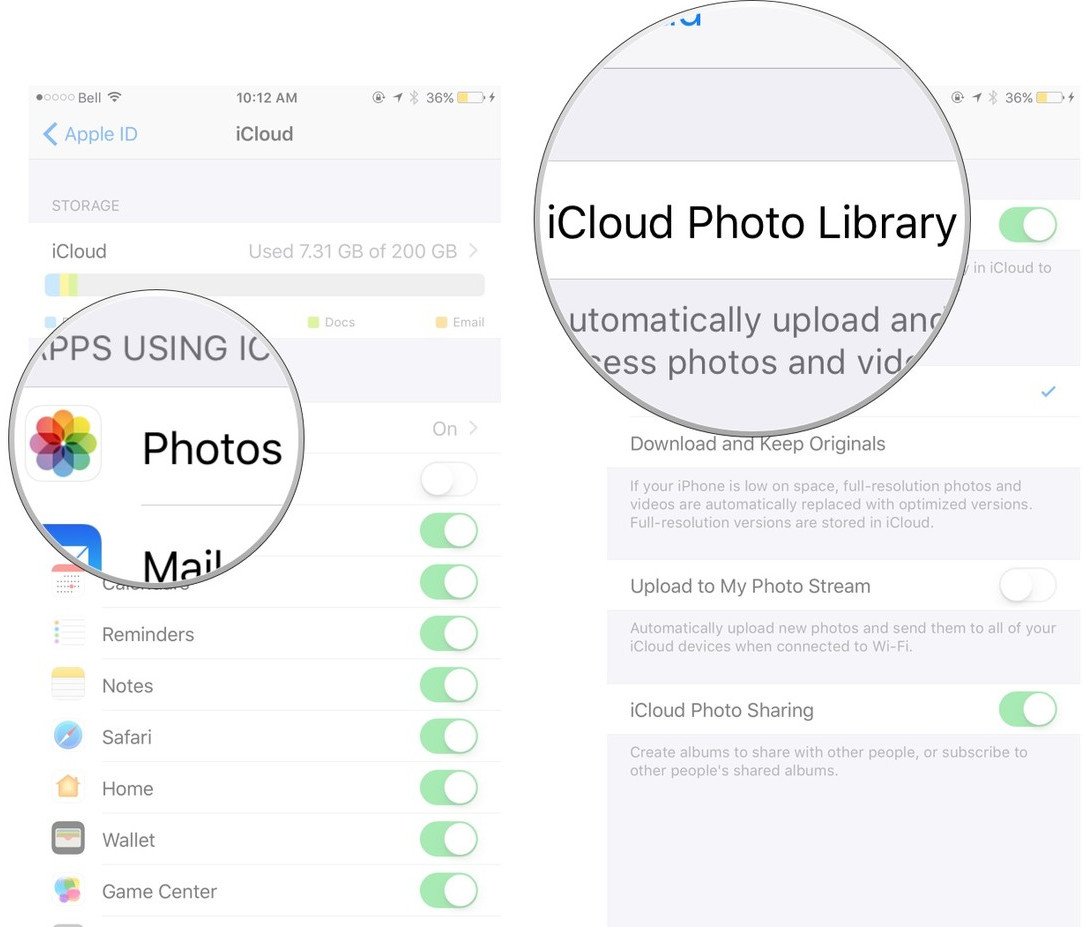
Step 1: Launch Settings, tap iCloud and then click Photos.

Step 2: Toggle on iCloud Photo Library. When this is toggled on, your iOS device will be backing up your iPhone photos automatically to iCloud when you connect to Wi-Fi. You can choose the “Optimize iPhone Storage” option to create more room on your iOS device.


Free Plan D: How to Backup Photos from iPhone with iTunes/iCloud

You can manually back up your iOS device photos on both iCloud and iTunes. Below, we show you how to backup photos from iPhone using these services.
Using iCloud
Also Read:7 Best Free Parental Control Apps for Android to Keep Your Kids Safe
Also Read:How to Transfer Data from iPhone to iPhone X/8/8 PlusAlso Read:8 Best To-do List Apps for Your iOS Device to Make Your Work DoneStep 1: Connect your iOS device to a stable Wi-Fi network.

Step 2: Launch Settings, tap [your name], click iCloud, and then tap iCloud Backup. Toggle on iCloud Backup if it is off. Click Back Up Now and stay connected to the Wi-Fi until the backup process is complete.


Using iTunes

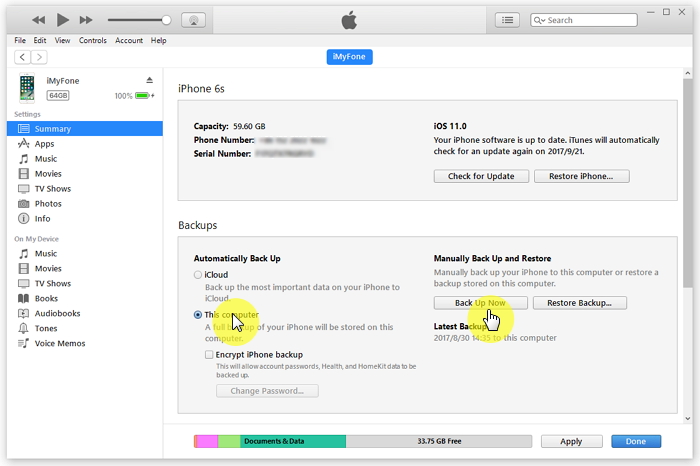
Step 1: Launch iTunes on your PC and connect your iOS device to the computer using a USB cable. If asked to Trust This Computer or for a passcode, follow the onscreen instructions.

Step 2: When your iOS device appears on iTunes, select it. To back up data that requires encrypting, select Encrypt [device] Backup and then choose a password you can remember. If your data does not require encrypting, just tap Back Up Now.

Free Plan E: How to Backup Photos from iPhone to Flickr

Flickr app for iPhone allows the iPhone users to upload their Camera Roll Photos to Flickr. This photo-sharing website offers up to 1 TB storage. Below, we show you how to backup photos from iPhone:

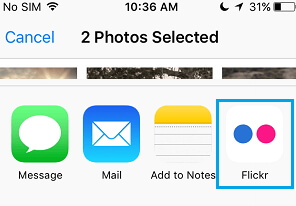
Step 1: Update the Flickr app to the latest version. Launch the Photos app on your iOS device and choose the photos or albums you wish to upload to Flickr.

Step 2: Click Share on the bottom-left corner and then select Flickr from the options that appear. Create an album title on the next screen and then choose whether to make it public or private. Tap upload on the screen top-right.

Free Plan F: Backup Photos from iPhone to Dropbox

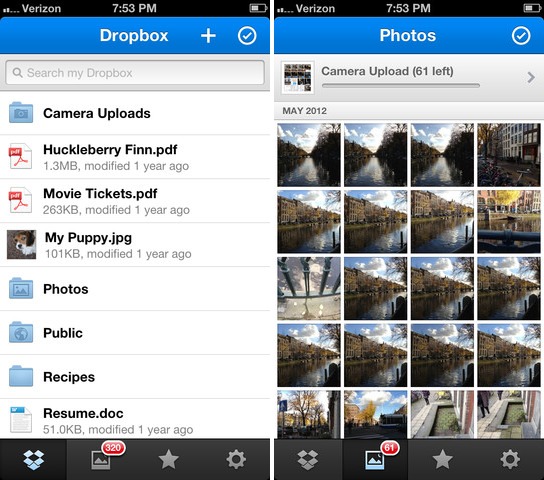
Dropbox will give you the capability to upload the photos you take on your iOS device automatically. You have to create a Dropbox account and install the Dropbox app on your iPhone first. Below, we guide you on how to backup photos from iPhone using Dropbox:

Step 1: Launch the Dropbox app -> go to Settings -> click Camera Upload -> choose On.

Step 2: Choose whether you want Dropbox to upload pictures only when you are on Wi-Fi or even when on Cellular data. Tap Enable and then tap OK when Dropbox asks access to your photos.

Free Plan G: Backup Photos from iPhone with Specialized Backup Tool

Also Read:jihosoft Free iPhone Data Recovery

Sponsor ads:

Gihosoft Free iPhone Data Recovery:https://www.gihosoft.com/iphone-data-recovery-free.html

Gihosoft iPhone Data Recovery Free

Free iPhone Data Recovery Software for Windows/Mac

Recover up to 12+ types of files, including contacts, SMS, photos, WhatsApp, Viber, notes, etc.

Restore lost data from iOS devices directly or from iTunes and iCloud backup

Recover iPhone data lost due to iOS upgrade/jailbreak, accidental deletion, device lost or broken

Support all the latest iPhone, iPad and iPod Touch

Both Free and Pro version.

If you lost data after you updated to a new iPhone, you can always use Gihosoft iPhone Data Recovery to get the data back from the old iPhone or backup.You may also like: iphonerecovery.com

If you use android phones, please choose Gihosoft Android Data Recovery.

With Gihosoft Android Data Recovery, no longer afraid of data loss!

Must read:Youtube video downloader for pc

Gihosoft RePicvid Free Photo Recovery Software provides a free photo recovery software for windows to help users recover the deleted or lost photo for free.
Jihosoft Android Data Recovery: the best Android Data Recovery software for Windows and Mac to recover deleted contacts, messages, photos, videos, WhatsApp and etc from Android devices.Tips:How to transfer messages from iPhone to iPhone

3/04/2019

How to Fix iCloud Photos Not Syncing in iOS 12


How to Fix iCloud Photos Not Syncing in iOS 12

iCloud for iPhone is designed to offer free cloud storage for iPhone users to back up and recover their device’s data. The iPhone photo library allows you to back up all your photos and recover them from the backup conveniently. However, this feature may fail in iOS 12. If this happens, there are ways to fix this problem:
Method 1: Enable iCloud Photo Library

Ensure that iCloud Photo Library is enabled under Photos & Camera at Settings. All you have to do is to open the Settings > Photos & Camera Settings then enable iCloud Photo Library. You can then try to disable the photo stream on your device by going to Settings > iCloud. Restart your iPhone and then re-enable the photo stream.
Also Read:Top 6 Windows Photos Alternatives to View Photos on Windows 10
Also Read:XD Card Recovery – Recover Deleted Photos from xD-Picture Card
Also Read:How to Convert SWF to MP4 on Mac or WindowsAlso Read:How to Fix the “Black Screen of Death” on iPhone XS/X/8/7


Method 2: Have Enough iCloud Space

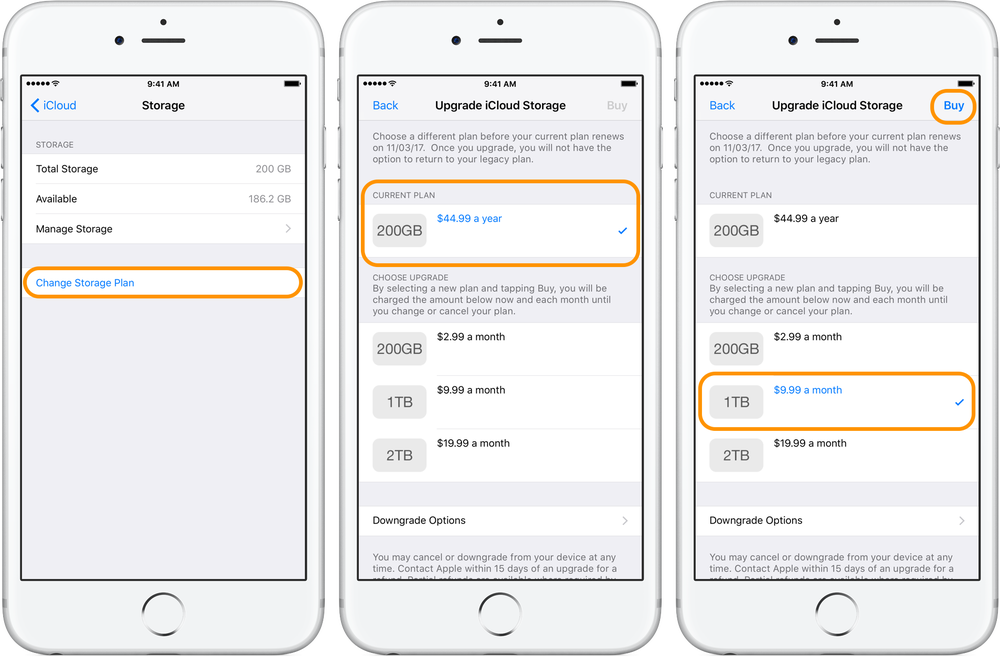
iCloud offers each user free 5GB space only to store your data. After syncing your device to iCloud regularly you might run out of the allocated storage space. This means that whenever you want to sync your device to iCloud, you will not be able because there is no space. To get more storage space you will be required to buy extra storage space for your device or delete some of the data already existing in iCloud. When you experience iPhone photos not syncing in iOS 12, it is advisable to check whether you have enough storage space before trying to find other ways to fix the problem.


Method 3: Restart Your Device

This is the basic or primary method to fix most common software-related issues like photos not syncing in iOS 12 and other small issues. To restart your iPhone, you will have to long press the Sleep/Wake button until you are able to see the red slider. Swipe the slider to power off the device. Give your device one or two minutes them long press the Sleep/Wake button once again until you are able to see the Apple logo on the screen.
Method 4: Reset Network Settings

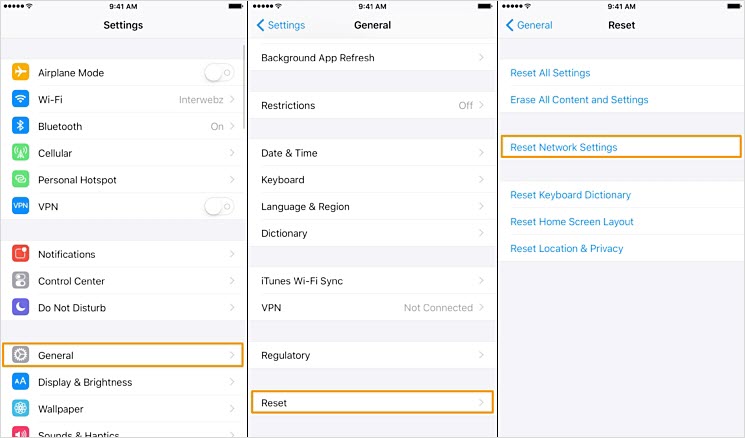
When syncing your device to iCloud Photo Library you will require a stable cellular network or a strong Wi-Fi connection. If the problem is related to network issues here are steps on how to reset the network settings: Simply open the Setting > General > Reset > Reset Network Settings. This will wipe off all the saved APN, VPN, Wi-Fi settings on the device. You can then set them up afresh.


Also Read:jihosoft Free iPhone Data Recovery

Sponsor ads:

Gihosoft Free iPhone Data Recovery:https://www.gihosoft.com/iphone-data-recovery-free.html

Gihosoft iPhone Data Recovery Free

Free iPhone Data Recovery Software for Windows/Mac

Recover up to 12+ types of files, including contacts, SMS, photos, WhatsApp, Viber, notes, etc.

Restore lost data from iOS devices directly or from iTunes and iCloud backup

Recover iPhone data lost due to iOS upgrade/jailbreak, accidental deletion, device lost or broken

Support all the latest iPhone, iPad and iPod Touch

Both Free and Pro version.

If you lost data after you updated to a new iPhone, you can always use Gihosoft iPhone Data Recovery to get the data back from the old iPhone or backup.You may also like: iphonerecovery.com

If you use android phones, please choose Gihosoft Android Data Recovery.

With Gihosoft Android Data Recovery, no longer afraid of data loss!

Must read:Youtube video downloader for pc

Gihosoft RePicvid Free Photo Recovery Software provides a free photo recovery software for windows to help users recover the deleted or lost photo for free.

Jihosoft Android Data Recovery: the best Android Data Recovery software for Windows and Mac to recover deleted contacts, messages, photos, videos, WhatsApp and etc from Android devices.Tips:How to transfer messages from iPhone to iPhone

Four Tips to Fix "iOS 12 Update Not Connected to Internet" 2019


Four Tips to Fix "iOS 12 Update Not Connected to Internet"

If you have time to troubleshoot the internet or connection problem, you can follow the tips below to get rid of the possible factors that influence the iOS 12 update and give you the error message "iOS 12 failed verification because you are no longer connected to the internet" .
2.1. Switch to Another Wi-Fi

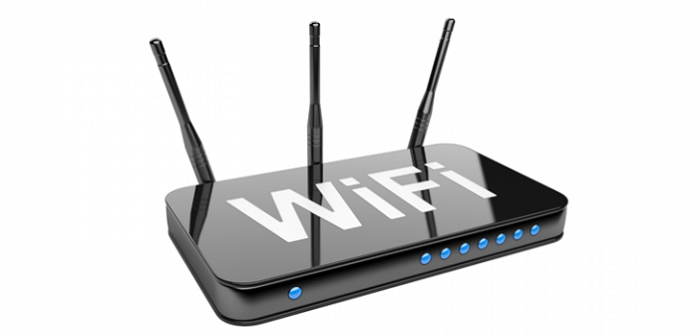
This could sound really basic, but when iOS 12 update is not connected to internet, you need to try with another Wi-Fi connection. Make sure to switch to a Wi-Fi more active than this and start updating the device.


2. Force Restart iPhone

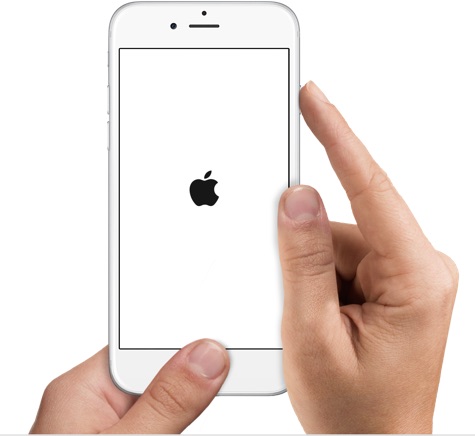
Whenever you're stuck with any issue regarding your device, we suggest you to always try forcing restart as a basic troubleshooting and so in the case of iOS 12 update not connected to internet. The steps varies with different models and you can check them out below.

Hold down the 'Power' and the 'Home' buttons simultaneously and keep doing this for roughly 10 seconds. Now, when you see the Apple logo on the screen, release the buttons. These were the steps for iPhone 6 and the versions below it. For iPhone 7 and 7 Plus, the process is almost same but you will have to press the 'Volume Down' button instead of 'Home' button.


If you own an iPhone 8, or later, make sure to press and release the 'Volume Up' button quickly. Now press and release the 'Volume Down' button. After this, press the 'Power' button until you see the Apple logo coming on the screen.


3. Delete the Update and Re-download iOS 12

Another tip to try when the error, "iOS 12 failed verification because you are no longer connected to the internet" pops up is to deleted the iOS 12 firmware from your device and then re-download it. If you've no idea, here are the steps that need to be followed.


Go to 'Settings' and tap 'General'.


Open 'Storage & iCloud Usage' and tap 'Manage Storage' afterwards.


Look for iOS update from the list you can now see. Tap on it followed by 'Delete Update'.


Confirm the actions and then re-download it by heading to 'Settings' > 'General' > 'Software Update'.


Note: if your device is running on iOS 11 and later, simply go to 'Settings' > 'General' > 'iPhone Storage' to delete the update.
Also Read:5 Best Music Player for PC to Free Download 2019Also Read:Top 6 Best Alternative Sites to YTS Torrent Movie Website 2019
4. Reset Network Settings

If there's still no progress and the latest update does not get connected to internet, all you need to try a resetting to your network settings. Using this method, all of your network settings like Wi-Fi passwords, VPN passwords etc. will be deleted to make you enable for a fresh start. Here are the steps.


On your device, open 'Settings' and go to 'General'.


Look for the 'Reset' option and tap on it.


Now, tap 'Reset Network Settings' and confirm your actions.


Also Read:jihosoft Free iPhone Data Recovery

Sponsor ads:

Gihosoft Free iPhone Data Recovery:https://www.gihosoft.com/iphone-data-recovery-free.html

Gihosoft iPhone Data Recovery Free

Free iPhone Data Recovery Software for Windows/Mac

Recover up to 12+ types of files, including contacts, SMS, photos, WhatsApp, Viber, notes, etc.

Restore lost data from iOS devices directly or from iTunes and iCloud backup

Recover iPhone data lost due to iOS upgrade/jailbreak, accidental deletion, device lost or broken

Support all the latest iPhone, iPad and iPod Touch

Both Free and Pro version.

If you lost data after you updated to a new iPhone, you can always use Gihosoft iPhone Data Recovery to get the data back from the old iPhone or backup.You may also like: iphonerecovery.com

If you use android phones, please choose Gihosoft Android Data Recovery.

With Gihosoft Android Data Recovery, no longer afraid of data loss!

Must read:Youtube video downloader for pc

Gihosoft RePicvid Free Photo Recovery Software provides a free photo recovery software for windows to help users recover the deleted or lost photo for free.

Jihosoft Android Data Recovery: the best Android Data Recovery software for Windows and Mac to recover deleted contacts, messages, photos, videos, WhatsApp and etc from Android devices.Tips:How to transfer messages from iPhone to iPhone