Free Plan A: Backup Photos from iPhone with Windows Photos App
It is possible to back up your iPhone photos to your Windows PC. All you have to do is connect your iOS device to the Windows PC and use the Windows Photo App to import the pictures to your computer. Below, we show you how to backup photos from iPhone using the Windows Photos App:
Step 1: Download the latest iTunes version. To import your photos from your iOS device to your PC, you need to have iTunes 12.5.1 and above on the computer.
Step 2: Connect your iOS device to the PC using a USB cable. If you are asked for a passcode or to Trust This Computer, follow the onscreen instructions.
Step 3: On your Windows 10, tap the Start button and then choose Photos to launch the Photos app. Then, Choose Import -> From a USB Device.

Free Plan B: Backup Photos from iPhone with AutoPlay
This method works best for Windows 7 and 8. If you are on Windows 10, using the Photos App will work better. To learn how to backup photos from iPhone using AutoPlay on Windows 7 and 8, follow the steps outlined below:
On Windows 7
Step 1: Connect your iOS device to your PC. On AutoPlay, tap “Import pictures and videos”.
Step 2: On the Window that appears, tap the Import Settings link. On the next page, change the folder to which you want your Camera Roll pictures to be imported to by simply tapping Browse next to “Import to” field.
Step 3: After choosing your import folder, tap OK and then choose a tag if you want to. Tap the Import button.
On Windows 8
Step 1: Connect your iOS device to the PC using a USB cable. If asked to Trust This Computer, follow the onscreen instructions.
Step 2: Open “This PC” and then right-click on your iOS device. Select “Import pictures and videos”.
Step 3: Choose “Review, organize, and group items to import” if this is the first time you are importing photos. Choose “Import all new items now” if you had transferred photos from your iPhone before. Tap Next.
Step 4: Click the “More Options” link to select the folder where you wish to import photos. Tap OK and then click the Next button.
Step 5: Choose the photo groups you wish to import and then tap the Import button.

Free Plan C: Backup Photos from iPhone to iCloud Photo Library
Apple offers its iOS device users iCloud as a method for backing up their data. This service comes with a free basic plan that offers users a free 5GB storage space. When this free storage space becomes full, users have to upgrade. To learn how to backup photos from iPhone using iCloud Photo Library, follow the simple steps below:
Step 1: Launch Settings, tap iCloud and then click Photos.
Step 2: Toggle on iCloud Photo Library. When this is toggled on, your iOS device will be backing up your iPhone photos automatically to iCloud when you connect to Wi-Fi. You can choose the “Optimize iPhone Storage” option to create more room on your iOS device.

Free Plan D: How to Backup Photos from iPhone with iTunes/iCloud
You can manually back up your iOS device photos on both iCloud and iTunes. Below, we show you how to backup photos from iPhone using these services.
Using iCloud
Also Read:7 Best Free Parental Control Apps for Android to Keep Your Kids Safe
Also Read:How to Transfer Data from iPhone to iPhone X/8/8 PlusAlso Read:8 Best To-do List Apps for Your iOS Device to Make Your Work DoneStep 1: Connect your iOS device to a stable Wi-Fi network.
Step 2: Launch Settings, tap [your name], click iCloud, and then tap iCloud Backup. Toggle on iCloud Backup if it is off. Click Back Up Now and stay connected to the Wi-Fi until the backup process is complete.

Using iTunes
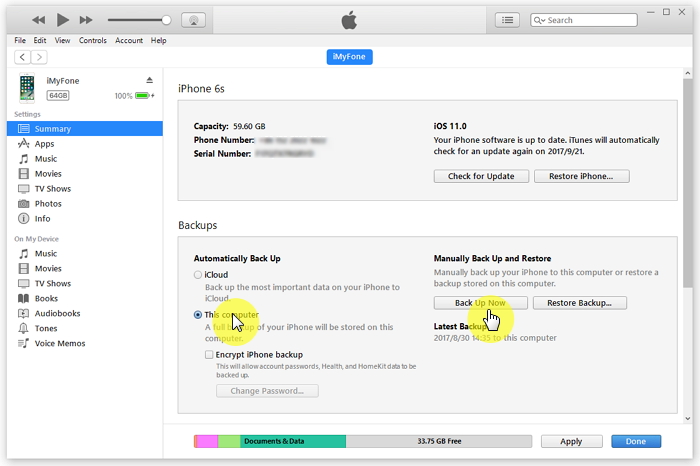
Step 1: Launch iTunes on your PC and connect your iOS device to the computer using a USB cable. If asked to Trust This Computer or for a passcode, follow the onscreen instructions.
Step 2: When your iOS device appears on iTunes, select it. To back up data that requires encrypting, select Encrypt [device] Backup and then choose a password you can remember. If your data does not require encrypting, just tap Back Up Now.
Free Plan E: How to Backup Photos from iPhone to Flickr
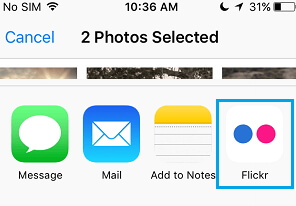
Flickr app for iPhone allows the iPhone users to upload their Camera Roll Photos to Flickr. This photo-sharing website offers up to 1 TB storage. Below, we show you how to backup photos from iPhone:
Step 1: Update the Flickr app to the latest version. Launch the Photos app on your iOS device and choose the photos or albums you wish to upload to Flickr.
Step 2: Click Share on the bottom-left corner and then select Flickr from the options that appear. Create an album title on the next screen and then choose whether to make it public or private. Tap upload on the screen top-right.
Free Plan F: Backup Photos from iPhone to Dropbox
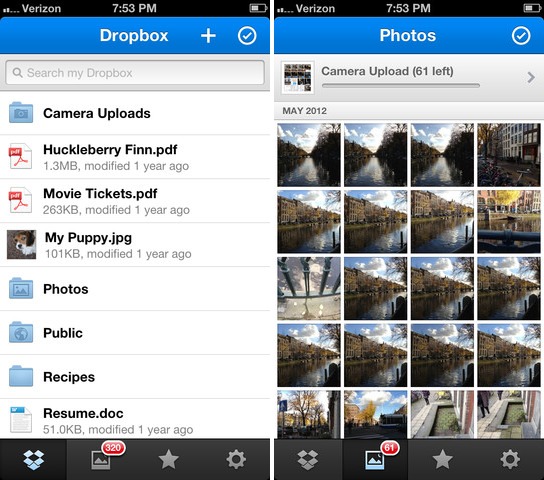
Dropbox will give you the capability to upload the photos you take on your iOS device automatically. You have to create a Dropbox account and install the Dropbox app on your iPhone first. Below, we guide you on how to backup photos from iPhone using Dropbox:
Step 1: Launch the Dropbox app -> go to Settings -> click Camera Upload -> choose On.
Step 2: Choose whether you want Dropbox to upload pictures only when you are on Wi-Fi or even when on Cellular data. Tap Enable and then tap OK when Dropbox asks access to your photos.
Free Plan G: Backup Photos from iPhone with Specialized Backup Tool
Also Read:jihosoft Free iPhone Data Recovery
Sponsor ads:
Gihosoft Free iPhone Data Recovery:https://www.gihosoft.com/iphone-data-recovery-free.html
Gihosoft iPhone Data Recovery Free
Free iPhone Data Recovery Software for Windows/Mac
Recover up to 12+ types of files, including contacts, SMS, photos, WhatsApp, Viber, notes, etc.
Restore lost data from iOS devices directly or from iTunes and iCloud backup
Recover iPhone data lost due to iOS upgrade/jailbreak, accidental deletion, device lost or broken
Support all the latest iPhone, iPad and iPod Touch
Both Free and Pro version.
If you lost data after you updated to a new iPhone, you can always use Gihosoft iPhone Data Recovery to get the data back from the old iPhone or backup.You may also like: iphonerecovery.com
If you use android phones, please choose Gihosoft Android Data Recovery.
With Gihosoft Android Data Recovery, no longer afraid of data loss!
Must read:Youtube video downloader for pc
Gihosoft RePicvid Free Photo Recovery Software provides a free photo recovery software for windows to help users recover the deleted or lost photo for free.
Jihosoft Android Data Recovery: the best Android Data Recovery software for Windows and Mac to recover deleted contacts, messages, photos, videos, WhatsApp and etc from Android devices.Tips:How to transfer messages from iPhone to iPhone

No comments:
Post a Comment