How to Fix iCloud Photos Not Syncing in iOS 12
iCloud for iPhone is designed to offer free cloud storage for iPhone users to back up and recover their device’s data. The iPhone photo library allows you to back up all your photos and recover them from the backup conveniently. However, this feature may fail in iOS 12. If this happens, there are ways to fix this problem:
Method 1: Enable iCloud Photo Library
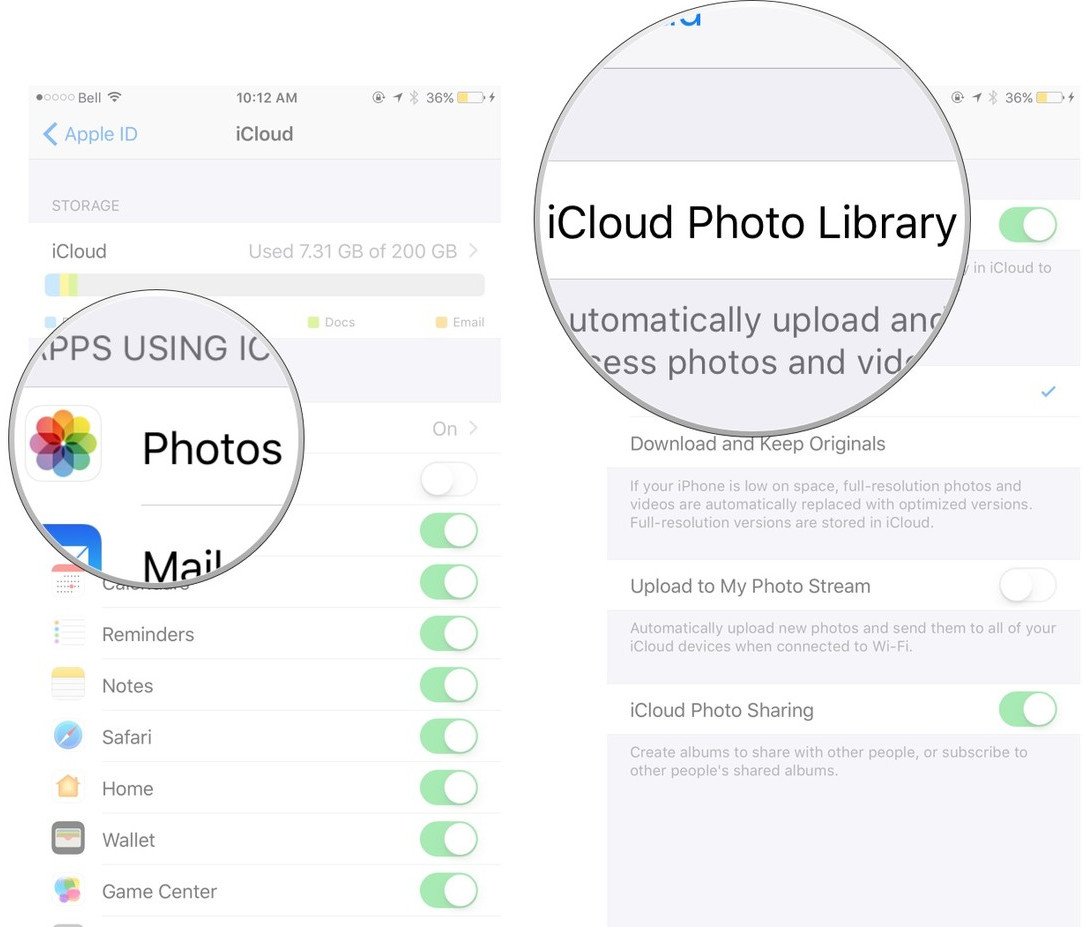
Ensure that iCloud Photo Library is enabled under Photos & Camera at Settings. All you have to do is to open the Settings > Photos & Camera Settings then enable iCloud Photo Library. You can then try to disable the photo stream on your device by going to Settings > iCloud. Restart your iPhone and then re-enable the photo stream.
Also Read:Top 6 Windows Photos Alternatives to View Photos on Windows 10
Also Read:XD Card Recovery – Recover Deleted Photos from xD-Picture Card
Also Read:How to Convert SWF to MP4 on Mac or WindowsAlso Read:How to Fix the “Black Screen of Death” on iPhone XS/X/8/7
Method 2: Have Enough iCloud Space
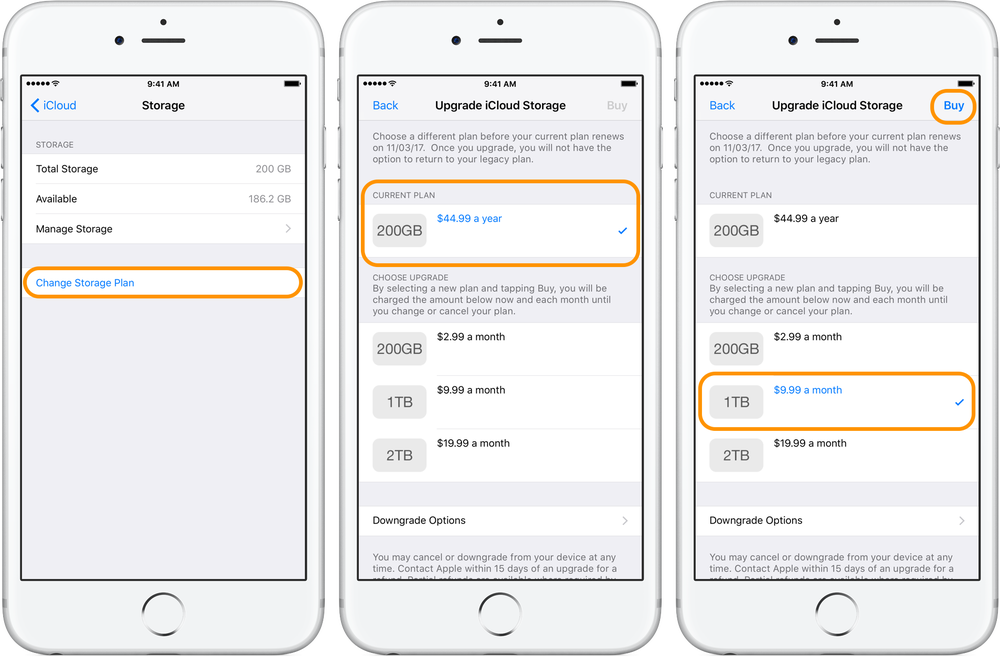
iCloud offers each user free 5GB space only to store your data. After syncing your device to iCloud regularly you might run out of the allocated storage space. This means that whenever you want to sync your device to iCloud, you will not be able because there is no space. To get more storage space you will be required to buy extra storage space for your device or delete some of the data already existing in iCloud. When you experience iPhone photos not syncing in iOS 12, it is advisable to check whether you have enough storage space before trying to find other ways to fix the problem.
Method 3: Restart Your Device
This is the basic or primary method to fix most common software-related issues like photos not syncing in iOS 12 and other small issues. To restart your iPhone, you will have to long press the Sleep/Wake button until you are able to see the red slider. Swipe the slider to power off the device. Give your device one or two minutes them long press the Sleep/Wake button once again until you are able to see the Apple logo on the screen.
Method 4: Reset Network Settings
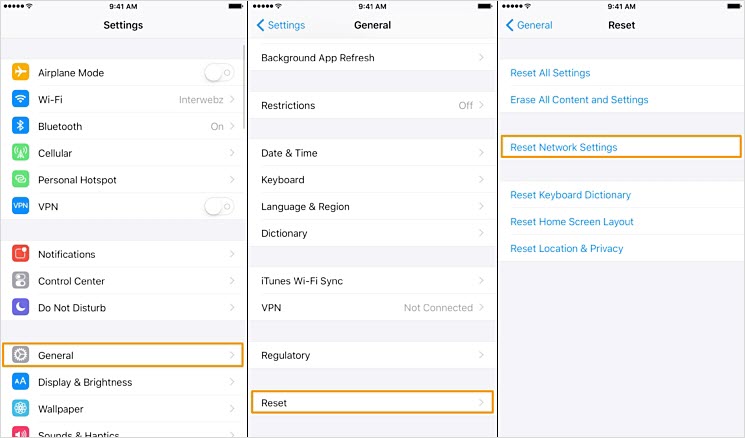
When syncing your device to iCloud Photo Library you will require a stable cellular network or a strong Wi-Fi connection. If the problem is related to network issues here are steps on how to reset the network settings: Simply open the Setting > General > Reset > Reset Network Settings. This will wipe off all the saved APN, VPN, Wi-Fi settings on the device. You can then set them up afresh.
Also Read:jihosoft Free iPhone Data Recovery
Sponsor ads:
Gihosoft Free iPhone Data Recovery:https://www.gihosoft.com/iphone-data-recovery-free.html
Gihosoft iPhone Data Recovery Free
Free iPhone Data Recovery Software for Windows/Mac
Recover up to 12+ types of files, including contacts, SMS, photos, WhatsApp, Viber, notes, etc.
Restore lost data from iOS devices directly or from iTunes and iCloud backup
Recover iPhone data lost due to iOS upgrade/jailbreak, accidental deletion, device lost or broken
Support all the latest iPhone, iPad and iPod Touch
Both Free and Pro version.
If you lost data after you updated to a new iPhone, you can always use Gihosoft iPhone Data Recovery to get the data back from the old iPhone or backup.You may also like: iphonerecovery.com
If you use android phones, please choose Gihosoft Android Data Recovery.
With Gihosoft Android Data Recovery, no longer afraid of data loss!
Must read:Youtube video downloader for pc
Gihosoft RePicvid Free Photo Recovery Software provides a free photo recovery software for windows to help users recover the deleted or lost photo for free.
Jihosoft Android Data Recovery: the best Android Data Recovery software for Windows and Mac to recover deleted contacts, messages, photos, videos, WhatsApp and etc from Android devices.Tips:How to transfer messages from iPhone to iPhone

No comments:
Post a Comment