Four Tips to Fix "iOS 12 Update Not Connected to Internet"
If you have time to troubleshoot the internet or connection problem, you can follow the tips below to get rid of the possible factors that influence the iOS 12 update and give you the error message "iOS 12 failed verification because you are no longer connected to the internet" .
2.1. Switch to Another Wi-Fi
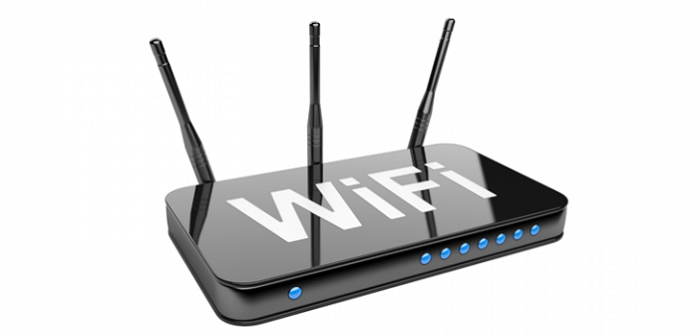
This could sound really basic, but when iOS 12 update is not connected to internet, you need to try with another Wi-Fi connection. Make sure to switch to a Wi-Fi more active than this and start updating the device.
2. Force Restart iPhone
Whenever you're stuck with any issue regarding your device, we suggest you to always try forcing restart as a basic troubleshooting and so in the case of iOS 12 update not connected to internet. The steps varies with different models and you can check them out below.
Hold down the 'Power' and the 'Home' buttons simultaneously and keep doing this for roughly 10 seconds. Now, when you see the Apple logo on the screen, release the buttons. These were the steps for iPhone 6 and the versions below it. For iPhone 7 and 7 Plus, the process is almost same but you will have to press the 'Volume Down' button instead of 'Home' button.
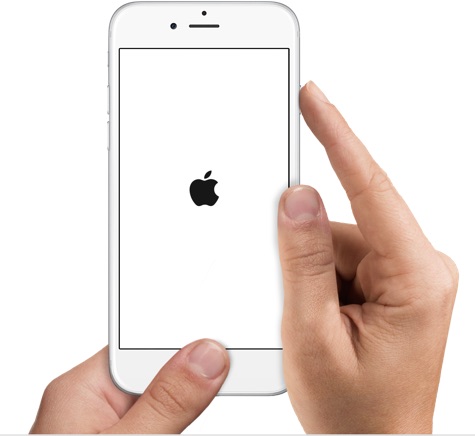
If you own an iPhone 8, or later, make sure to press and release the 'Volume Up' button quickly. Now press and release the 'Volume Down' button. After this, press the 'Power' button until you see the Apple logo coming on the screen.

3. Delete the Update and Re-download iOS 12
Another tip to try when the error, "iOS 12 failed verification because you are no longer connected to the internet" pops up is to deleted the iOS 12 firmware from your device and then re-download it. If you've no idea, here are the steps that need to be followed.
Go to 'Settings' and tap 'General'.
Open 'Storage & iCloud Usage' and tap 'Manage Storage' afterwards.
Look for iOS update from the list you can now see. Tap on it followed by 'Delete Update'.
Confirm the actions and then re-download it by heading to 'Settings' > 'General' > 'Software Update'.

Note: if your device is running on iOS 11 and later, simply go to 'Settings' > 'General' > 'iPhone Storage' to delete the update.
Also Read:5 Best Music Player for PC to Free Download 2019Also Read:Top 6 Best Alternative Sites to YTS Torrent Movie Website 2019
4. Reset Network Settings
If there's still no progress and the latest update does not get connected to internet, all you need to try a resetting to your network settings. Using this method, all of your network settings like Wi-Fi passwords, VPN passwords etc. will be deleted to make you enable for a fresh start. Here are the steps.
On your device, open 'Settings' and go to 'General'.
Look for the 'Reset' option and tap on it.
Now, tap 'Reset Network Settings' and confirm your actions.

Also Read:jihosoft Free iPhone Data Recovery
Sponsor ads:
Gihosoft Free iPhone Data Recovery:https://www.gihosoft.com/iphone-data-recovery-free.html
Gihosoft iPhone Data Recovery Free
Free iPhone Data Recovery Software for Windows/Mac
Recover up to 12+ types of files, including contacts, SMS, photos, WhatsApp, Viber, notes, etc.
Restore lost data from iOS devices directly or from iTunes and iCloud backup
Recover iPhone data lost due to iOS upgrade/jailbreak, accidental deletion, device lost or broken
Support all the latest iPhone, iPad and iPod Touch
Both Free and Pro version.
If you lost data after you updated to a new iPhone, you can always use Gihosoft iPhone Data Recovery to get the data back from the old iPhone or backup.You may also like: iphonerecovery.com
If you use android phones, please choose Gihosoft Android Data Recovery.
With Gihosoft Android Data Recovery, no longer afraid of data loss!
Must read:Youtube video downloader for pc
Gihosoft RePicvid Free Photo Recovery Software provides a free photo recovery software for windows to help users recover the deleted or lost photo for free.
Jihosoft Android Data Recovery: the best Android Data Recovery software for Windows and Mac to recover deleted contacts, messages, photos, videos, WhatsApp and etc from Android devices.Tips:How to transfer messages from iPhone to iPhone

No comments:
Post a Comment