3/04/2019

Four Tips to Fix "iOS 12 Update Not Connected to Internet" 2019


Four Tips to Fix "iOS 12 Update Not Connected to Internet"

If you have time to troubleshoot the internet or connection problem, you can follow the tips below to get rid of the possible factors that influence the iOS 12 update and give you the error message "iOS 12 failed verification because you are no longer connected to the internet" .
2.1. Switch to Another Wi-Fi

This could sound really basic, but when iOS 12 update is not connected to internet, you need to try with another Wi-Fi connection. Make sure to switch to a Wi-Fi more active than this and start updating the device.

2. Force Restart iPhone

Whenever you're stuck with any issue regarding your device, we suggest you to always try forcing restart as a basic troubleshooting and so in the case of iOS 12 update not connected to internet. The steps varies with different models and you can check them out below.

Hold down the 'Power' and the 'Home' buttons simultaneously and keep doing this for roughly 10 seconds. Now, when you see the Apple logo on the screen, release the buttons. These were the steps for iPhone 6 and the versions below it. For iPhone 7 and 7 Plus, the process is almost same but you will have to press the 'Volume Down' button instead of 'Home' button.
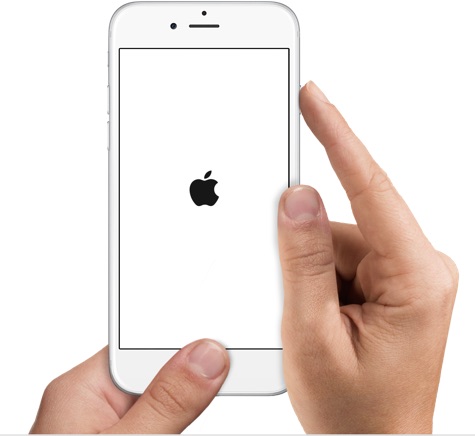


If you own an iPhone 8, or later, make sure to press and release the 'Volume Up' button quickly. Now press and release the 'Volume Down' button. After this, press the 'Power' button until you see the Apple logo coming on the screen.


3. Delete the Update and Re-download iOS 12

Another tip to try when the error, "iOS 12 failed verification because you are no longer connected to the internet" pops up is to deleted the iOS 12 firmware from your device and then re-download it. If you've no idea, here are the steps that need to be followed.


Go to 'Settings' and tap 'General'.


Open 'Storage & iCloud Usage' and tap 'Manage Storage' afterwards.


Look for iOS update from the list you can now see. Tap on it followed by 'Delete Update'.


Confirm the actions and then re-download it by heading to 'Settings' > 'General' > 'Software Update'.


Note: if your device is running on iOS 11 and later, simply go to 'Settings' > 'General' > 'iPhone Storage' to delete the update.
Also Read:5 Best Music Player for PC to Free Download 2019Also Read:Top 6 Best Alternative Sites to YTS Torrent Movie Website 2019
4. Reset Network Settings

If there's still no progress and the latest update does not get connected to internet, all you need to try a resetting to your network settings. Using this method, all of your network settings like Wi-Fi passwords, VPN passwords etc. will be deleted to make you enable for a fresh start. Here are the steps.


On your device, open 'Settings' and go to 'General'.


Look for the 'Reset' option and tap on it.


Now, tap 'Reset Network Settings' and confirm your actions.


Also Read:jihosoft Free iPhone Data Recovery

Sponsor ads:

Gihosoft Free iPhone Data Recovery:https://www.gihosoft.com/iphone-data-recovery-free.html

Gihosoft iPhone Data Recovery Free

Free iPhone Data Recovery Software for Windows/Mac

Recover up to 12+ types of files, including contacts, SMS, photos, WhatsApp, Viber, notes, etc.

Restore lost data from iOS devices directly or from iTunes and iCloud backup

Recover iPhone data lost due to iOS upgrade/jailbreak, accidental deletion, device lost or broken

Support all the latest iPhone, iPad and iPod Touch

Both Free and Pro version.

If you lost data after you updated to a new iPhone, you can always use Gihosoft iPhone Data Recovery to get the data back from the old iPhone or backup.You may also like: iphonerecovery.com

If you use android phones, please choose Gihosoft Android Data Recovery.

With Gihosoft Android Data Recovery, no longer afraid of data loss!

Must read:Youtube video downloader for pc

Gihosoft RePicvid Free Photo Recovery Software provides a free photo recovery software for windows to help users recover the deleted or lost photo for free.

Jihosoft Android Data Recovery: the best Android Data Recovery software for Windows and Mac to recover deleted contacts, messages, photos, videos, WhatsApp and etc from Android devices.Tips:How to transfer messages from iPhone to iPhone

How to Set Your Own Ringtones on iPhone


How to Set Your Own Ringtones on iPhone

Now you already know how to make your own ringtones on iPhone. Once your new ringtone has been downloaded onto your phone, the next step is to set it up. You can do this directly on your phone. Here’s how:

Step 1: On your iPhone, go into Settings, then select “Sounds & Haptics”.

Step 2: Click on “Ringtone”.

Step 3: From here, a whole list of ringtone options will appear, and your new iPhone ringtone should be on the list. Select it.


Part 2. How to Apply a Ringtone to a Certain Contact

If you know how to make your own ringtones on iPhone, you should know that you can apply a ringtone to a certain contact. When it comes to setting up free iPhone ringtones, the other option that you have is to give specific people their own ringtones. Whether you want to choose a song that reminds you of them, or simply just want to distinguish between callers, this can be done very simply and quickly using iMyFone TunesMate and your iPhone. Here’s how:

Step 1: Select which contact you would like to set the ringtone for.In the top right hand corner, select the “Edit” option.
Also Read:How to Fix the “Black Screen of Death” on iPhone XS/X/8/7Also Read:How to Transfer Data from HTC to Samsung Galaxy S7/S7 Edge/Note7

Step 2: Scroll down until you see the “Ringtone” option. Click on it.

Step 3: Select which ringtone you would like to use for that contact.


Note: If you would like to set the text tone, you can do that too by setting “text tone” instead of “ringtone”.


In conclusion, you don’t have to struggle with the un-user friendly iTunes when it comes to how to make your own iPhone ringtones in iOS 12. All you need is help from a user-friendly software program like iMyFone TunesMate. Not only can TunesMate help to create free iPhone ringtones, but it can also help to transfer files and music to and from your computer and phone without any hassle. Try TunesMate today and give your contacts their own ringtone!Also Read:jihosoft Free iPhone Data Recovery

Sponsor ads:

Gihosoft Free iPhone Data Recovery:https://www.gihosoft.com/iphone-data-recovery-free.html

Gihosoft iPhone Data Recovery Free

Free iPhone Data Recovery Software for Windows/Mac

Recover up to 12+ types of files, including contacts, SMS, photos, WhatsApp, Viber, notes, etc.

Restore lost data from iOS devices directly or from iTunes and iCloud backup

Recover iPhone data lost due to iOS upgrade/jailbreak, accidental deletion, device lost or broken

Support all the latest iPhone, iPad and iPod Touch

Both Free and Pro version.

If you lost data after you updated to a new iPhone, you can always use Gihosoft iPhone Data Recovery to get the data back from the old iPhone or backup.You may also like: iphonerecovery.com

If you use android phones, please choose Gihosoft Android Data Recovery.

With Gihosoft Android Data Recovery, no longer afraid of data loss!

Must read:Youtube video downloader for pc

Gihosoft RePicvid Free Photo Recovery Software provides a free photo recovery software for windows to help users recover the deleted or lost photo for free.

Jihosoft Android Data Recovery: the best Android Data Recovery software for Windows and Mac to recover deleted contacts, messages, photos, videos, WhatsApp and etc from Android devices.Tips:How to transfer messages from iPhone to iPhone

How to Transfer iCloud to New Phone?


1. How to Completely Transfer iCloud to New Phone?

By following the steps below, you should be able to transfer your iCloud completely to your new device:


Step 1: Turn your new device on. A "Hello" screen should appear. If your device is already set up, you will need to erase it for the steps we have outlined below to work. You may need to know how to backup then erase data on iPhone.


Step 2: Follow the onscreen steps to the Wi-Fi screen.


Step 3: Click a Wi-Fi network to join. Again, follow the onscreen steps to the Apps & Data Screen. Click Restore from iCloud Backup.


Step 4: Using your Apple ID and password, sign into iCloud.


Step 5: Choose a backup to restore. Check the date and size of the backup to make sure it is the correct backup.


Step 6: Stay connected to the internet for the restoration process to finish and then complete the setup process. For content like photos, apps, and music to be downloaded, you will need to plug your iPhone into power and also keep it connected to the internet after the setup.


2. Transfer Contacts, Notes, Safari from iCloud to New Phone

It is possible to transfer your contacts, Safari data, reminders, and more from iCloud to your new iPhone. This can be done through syncing. We will discuss how to sync contacts using iCloud to transfer to new phone. Just follow the steps below:


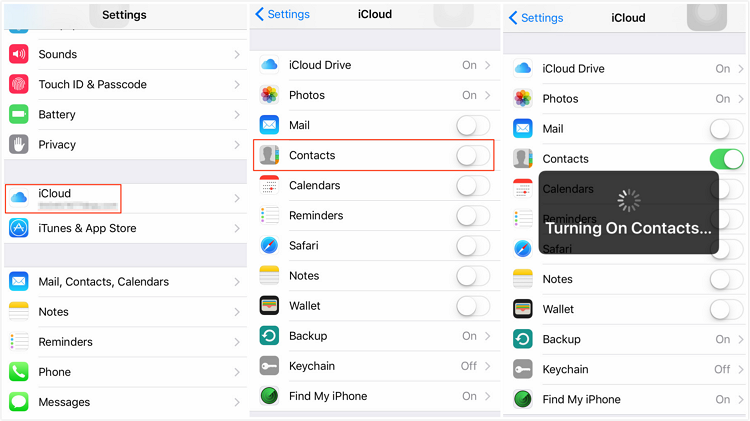
Step 1: Open Settings, tap [your name] and click iCloud. For iOS 10.2 and below, open Settings and click iCloud.


Step 2: Toggle on Contacts under iCloud. In the confirmation box that appears, tap Merge.


For syncing other data types, you can use steps similar to the ones we have listed above.

The two methods we have outlined above will help you to transfer iCloud to new phone. However, they are not perfect. When using the first method, you will have to transfer all the data available in iCloud or nothing. You cannot transfer just the data you need. While using the second method, you only get to sync limited data types which iCloud supports. As an iPhone user, you will want to transfer more data such as WhatsApp and text messages which are more important. Sometimes, you may want to transfer the data selectively.Also Read:Top 6 Best Vumoo Alternative Sites for You to Watch and Download Movies 2019
Also Read:How to Fix AC3 Audio Format Not Supported Error in MX Player
Also Read:How to Add Background Music to Video Online for Free
Also Read:10 Best Free Audiobook Apps for Your iPhone or iPad in 2019
Also Read:How to take a screenshot on any Android phone
Also Read:Top 7 Best Free DVD Burner for Mac You Should Know | 2019 Edition

Also Read:How to Download Twitch Videos for Free
Also Read:How to Access and Unlock Android Phone with Broken Screen

So, is there a way to transfer what you need from iCloud to your new iPhone? Let's find out.

Sponsor ads:

Gihosoft Free iPhone Data Recovery:https://www.gihosoft.com/iphone-data-recovery-free.html

Gihosoft iPhone Data Recovery Free

Free iPhone Data Recovery Software for Windows/Mac

Recover up to 12+ types of files, including contacts, SMS, photos, WhatsApp, Viber, notes, etc.

Restore lost data from iOS devices directly or from iTunes and iCloud backup

Recover iPhone data lost due to iOS upgrade/jailbreak, accidental deletion, device lost or broken

Support all the latest iPhone, iPad and iPod Touch

Both Free and Pro version.

If you lost data after you updated to a new iPhone, you can always use Gihosoft iPhone Data Recovery to get the data back from the old iPhone or backup.You may also like: iphonerecovery.com

If you use android phones, please choose Gihosoft Android Data Recovery.

With Gihosoft Android Data Recovery, no longer afraid of data loss!

Must read:Youtube video downloader for pc

Gihosoft RePicvid Free Photo Recovery Software provides a free photo recovery software for windows to help users recover the deleted or lost photo for free.

Jihosoft Android Data Recovery: the best Android Data Recovery software for Windows and Mac to recover deleted contacts, messages, photos, videos, WhatsApp and etc from Android devices.Tips:How to transfer messages from iPhone to iPhone


jihosoft Free iPhone Data Recovery

5 Best Cashback Apps for Android in India 2019


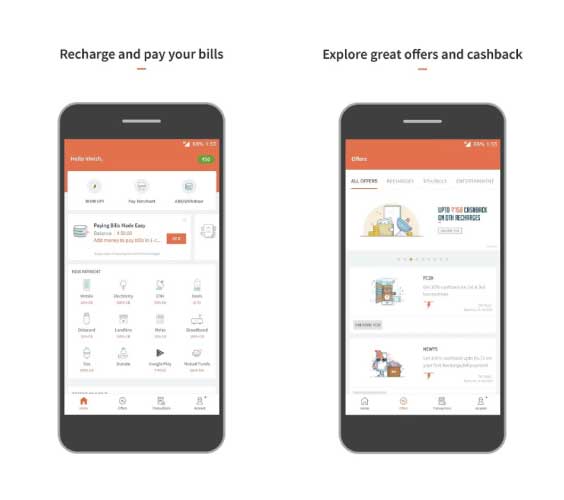
E-banking has undoubtedly become an imperative part of our daily digital life. E-banking apps facilitate us to complete our day to day payments and transactions within a few seconds which makes our life a lot easier. As a result, Banking apps and E-wallets have been broadly accepted around the world due to their ease of access and security. Today, there isn’t even a need to carry hard cash in your pocket whenever you go out for shopping.

Coming to the present scenario, banking and E-wallet apps are not only used for making payments and transactions but also for a wide range of services offered, such as mobile recharges, movie ticket bookings, utility bill payments, online and offline payments and a lot more.

Along with their services, these apps also provide its users with a lot of other benefits in the form of offers, discount coupons, cash-back etc. This helps users to save a part of their money whenever they make a successful transaction using these apps. Thus, people are highly obsessed to know about different banking apps with such paybacks.

So let us take a look at some of the best cashback apps for Android available in India.

Also Read:How to Recover Files and Data from Formatted Hard Disk Drive

Also Read:3 Ways to Restore Your iPhone without Updating in 2019

Best Cashback Apps for Android in India:


PayTM


MagicPin


CouponDuniya


Freecharge


MobiKwik
1. PayTM

PayTM is one of the most successful and renowned digital wallets and E-Commerce payment system with more than 300 million users.

PayTM provides a wide range of services including mobile recharges, bill payments, UPI money transfer, shopping, loan payments, travel and movie ticket bookings and much more.

PayTM gives you a lot of cashbacks whenever you make a successful payment through it. Cashbacks can be claimed using promo codes, the user can use his/her cashback amount to do mobile recharges or any other services provided by PayTM.


Main Features:


Mobile Recharge & Bill Payment.


Money Transfer.


Water, Gas & Electricity Bill Payment.


Entertainment: Movie Tickets, Amusement Parks & Events.

Download PayTM
2. MagicPin

Voted as the best cashback app of 2018, MagicPin is an amazing cashback app as well as a social network which let you find best offers, vouchers, and deals on food, fashion, travel etc near you. The app has a wide range of stores listed in it.

Once you have signed up in MagicPin app, you can start searching for offers available nearby stores, restaurants, hotels, salons etc. You can easily earn MagicPin points which can give cashbacks up to 100% by sharing a selfie of you with your bill from the store which you have visited.

You can redeem your MagicPin points to do recharges, book tickets etc and even to pay bills in a listed offline outlet as well.


Main Features:


Exclusive coupons, gift vouchers, deals, and offers.


Movies and Events vouchers.


Fashion vouchers.


Beauty vouchers.

Download MagicPin
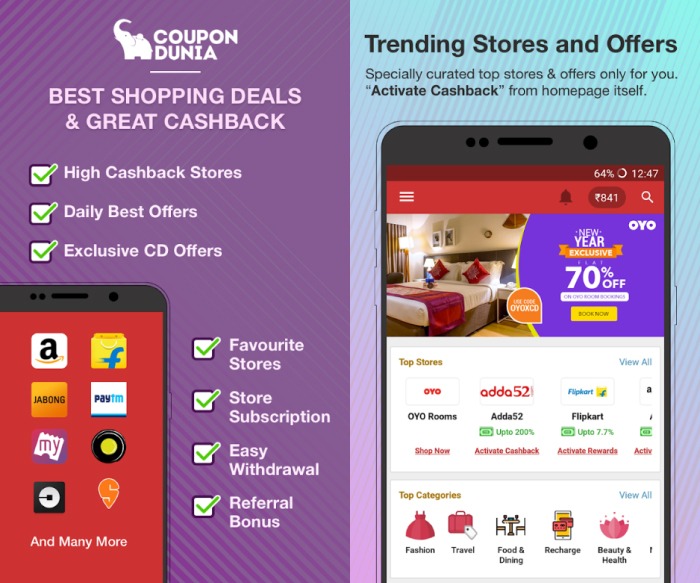
3. CouponDuniya

Couponduniya is one of the biggest coupon websites in India with over 9 million active monthly users.

The app helps you find live amazing deals on food, fashion, travel etc near you from the stores listed in it. For every transaction you made using CouponDunia, you will be getting an assured amount as cashback.

You can keep money in the form of cashbacks, coupons, offers, and other discounts and this can be either used for mobile recharges or else you can transfer the amount to your wallet as well.


Main Features:


Browse Best Coupons and Offers.


Real-Time Notifications.


Browse Offers with Discount Filter.


Browse Store-specific Offers.

DownloadCouponduniya
4. Freecharge

Freecharge is a well-known marketplace for financial services and several other services like mobile wallet, recharges, shopping etc. The app looks forward to providing seamless transactions between different banks.

Several discounts and cashbacks can be gained through successful Freecharge transactions as well as from recharges, shopping, booking etc.

The app also supports UPI payment system which helps in instant transfer of money between two bank accounts.


Main Features:


UPI Payments.


Mobile Recharges.


Bill Payments.


Cashbacks and Discounts.

DownloadFreecharge
5. MobiKwik

Similar to many other E-Wallets, MobiKwik is a smartphone-based payment system as well as a digital wallet. It supports all types of mobile payments, electricity bill payments, online and offline shopping, recharges, ticket bookings etc.

MobiKwik gives you instant cashbacks on online and offline purchases from their preferred stores, recharges and other payments done through the app. Users can also enjoy other benefits such as promo codes, discounts etc on successful transactions.


Main Features:


Mobile Recharge & Bill Payment.


DTH & Data Card Recharge.


Pay Utility Bills: Electricity, Gas, and Water.


Redeem your PAYBACK points on the Mobikwik App.

DownloadMobiKwik

So, these were our picks for the top 5 cashback apps for your Android device. If you liked this post then do not forget to share it with your friends.

Sponsor ads:

Gihosoft Free iPhone Data Recovery:https://www.gihosoft.com/iphone-data-recovery-free.html

Gihosoft iPhone Data Recovery Free

Free iPhone Data Recovery Software for Windows/Mac

Recover up to 12+ types of files, including contacts, SMS, photos, WhatsApp, Viber, notes, etc.

Restore lost data from iOS devices directly or from iTunes and iCloud backup

Recover iPhone data lost due to iOS upgrade/jailbreak, accidental deletion, device lost or broken

Support all the latest iPhone, iPad and iPod Touch

Both Free and Pro version.

If you lost data after you updated to a new iPhone, you can always use Gihosoft iPhone Data Recovery to get the data back from the old iPhone or backup.You may also like: iphonerecovery.com

If you use android phones, please choose Gihosoft Android Data Recovery.

With Gihosoft Android Data Recovery, no longer afraid of data loss!

Must read:Youtube video downloader for pc

Gihosoft RePicvid Free Photo Recovery Software provides a free photo recovery software for windows to help users recover the deleted or lost photo for free.

Jihosoft Android Data Recovery: the best Android Data Recovery software for Windows and Mac to recover deleted contacts, messages, photos, videos, WhatsApp and etc from Android devices.Tips:How to transfer messages from iPhone to iPhone
jihosoft Free iPhone Data Recovery
Also Read:How to Fix AC3 Audio Format Not Supported Error in MX Player
Also Read:How to Add Background Music to Video Online for Free
Also Read:10 Best Free Audiobook Apps for Your iPhone or iPad in 2019
Also Read:How to take a screenshot on any Android phone
Also Read:Top 7 Best Free DVD Burner for Mac You Should Know | 2019 Edition


Also Read:How to Download Twitch Videos for Free

How To Share Your Instagram Story On Facebook

How To Share Your Instagram Story On Facebook

Social networking sites have taken over the world. They are literally everywhere and in so many numbers! Every day there is something new happening and to cop up with everything that is going around surely gets tough. But if you’re a blogger or a social media influencer, you very well know the efforts it takes to be active on all social networks. And with the ever-rising number of social networking sites, that has so many different features such as photo/video stories, live option, effects, and filters, and so much more! It’s hard to be omnipresent on all of them! But it’s sure not impossible. As there are certain ways through which one can simultaneously share the same stuff on many networks. So, to all the Instagram and Facebook users, who are tired of juggling between both the popular and giant social networking sites, this article is for you. As in this article, we will teach you how you can share your Instagram story on Facebook in the most simple and convenient way.

Worth Reading: How To Set Video Thumbnail On Instagram

Note: For sharing your Instagram story on Facebook, you need to first link your Instagram account to Facebook.


How to link Instagram to Facebook:


Open your Instagram account.


Once done, tap on your profile. And when your profile page opens, tap on the three horizontal lines from the upper right corner.


Now tap on the option of “Settings” from the bottom of your screen.


And then scroll to the sub-heading of “Accounts” and under that, tap on the option of “Linked Accounts”.


Now here, you will find a list of social platforms that offer Instagram integration, with Facebook at the top of that list. So, for linking your Instagram to Facebook, tap on the “Facebook” option and sign in using your credentials.


Once signed in, that’s it your accounts will now be connected.
How to share your Instagram story on Facebook:

Once your Instagram account has been linked, the following steps are quite easy then.


Open your Instagram account.


Tap on “Your Story” from your home page. And select a photo or video that you want to share. (You can do it from your profile page too).


Once selected, tap on “Send to” from the bottom right corner.


Now, click on the blue button of “Share” (this will share your story on Instagram). And once clicked, you will get the option of “Your Facebook Story”, now besides that tap on the option of “Share”. And that’s it done, your Instagram story will now get shared on Facebook.

So, these are the steps through which one can easily share their Instagram story on Facebook without any hassle. Now, the steps that are mentioned above will let you manually pick the stories that you want to share. But if you want to share your stories automatically, then simply go to your Settings > Story Controls > Share your story to Facebook. And that’s it now your Instagram story will automatically, get shared to your Facebook story without any manual work. So, do you want to share all your Instagram stories? Or want to select them individually? Well, the choice is up to you.
Related Posts:


How To Add Story Highlights On Instagram


How to Schedule Post on Instagram

So, if you find this article helpful or interesting share it on social media with your friends too. And also mention your views in the comment box below.Sponsor ads:

Gihosoft Free iPhone Data Recovery:https://www.gihosoft.com/iphone-data-recovery-free.html

Gihosoft iPhone Data Recovery Free

Free iPhone Data Recovery Software for Windows/Mac

Recover up to 12+ types of files, including contacts, SMS, photos, WhatsApp, Viber, notes, etc.

Restore lost data from iOS devices directly or from iTunes and iCloud backup

Recover iPhone data lost due to iOS upgrade/jailbreak, accidental deletion, device lost or broken

Support all the latest iPhone, iPad and iPod Touch

Both Free and Pro version.

If you lost data after you updated to a new iPhone, you can always use Gihosoft iPhone Data Recovery to get the data back from the old iPhone or backup.You may also like: iphonerecovery.com

If you use android phones, please choose Gihosoft Android Data Recovery.

With Gihosoft Android Data Recovery, no longer afraid of data loss!

Must read:Youtube video downloader for pc

Gihosoft RePicvid Free Photo Recovery Software provides a free photo recovery software for windows to help users recover the deleted or lost photo for free.

Jihosoft Android Data Recovery: the best Android Data Recovery software for Windows and Mac to recover deleted contacts, messages, photos, videos, WhatsApp and etc from Android devices.Tips:How to transfer messages from iPhone to iPhone

jihosoft Free iPhone Data Recovery

Apple Seeds iOS 12.2, tvOS 12.2, macOS 10.14.4, and watchOS 5.2 Beta 4 to Developers [Updated]


Apple continues to move ahead with prerelease testing of the next major update to iOS.

Update: Apple has officially seeded the corresponding public beta of iOS 12.2 as well. Public beta testers can simply update their devices as they normally would to get the new beta seed. If you are not already part of the public beta, you can sign up right here.

The original article continues below.

Apple today officially seeded the fourth developer beta of iOS 12.2, watchOS 5.2, and tvOS 12.2. It is likely that Apple will be beta testing iOS 12.2 for several weeks ahead of the public launch. At the time of publication it is not known what is new within this particular software release. If there are any additions made to this developer beta, we will update this post accordingly.

However, courtesy of the previous seeded developer beta, we know that there are several different changes and new additions. That includes support for HomeKit in different TV models, “Hey Siri” support for AirPods 2, and Apple News in Canada. There are also new Animoji within iOS 12.2, including a shark, giraffe, and other options.

Apple’s third developer beta included a patch for the Group FaceTime bug. Apple already fixed this for the public with the launch of iOS 12.1.4 earlier this year. However, this is the first beta that Apple has seeded for iOS 12.2, so the fix had to wait until now for the developer beta. The public beta, which will launch this week, will include the Group FaceTime bug as well.

The Group FaceTime audio bug made it possible for someone to easily eavesdrop on the person they were calling, as it fed in the audio from the source even before they answered the call.


To update to iOS 12.2, developers will need to make sure that their supported iOS devices are registered properly. Once that’s done, it’s as simple as opening Settings –> General –> Software Update and then following the onscreen instructions.

To update to the latest developer beta of macOS Mojave 10.14.4, developers simply need to open the System Preferences –> Update Software on registered and supported computers.

To update to watchOS 5.2, developers need to make sure that the Apple Watch is connected to the charger, that the battery has at least 50 percent remaining, and that it is connected and within range of the iPhone. On the iOS device, open the Watch app and tap on Genera –> Software Update.

To update to the latest beta version of tvOS, developers need to run the necessary Xcode profile.

(If you want to try the developer beta, but don’t want to sign up for a developer account, you can find out right here.)

Apple will also seed a corresponding public beta of iOS 12.2 in the near future.

Like this post? Share it!Sponsor ads:

Gihosoft Free iPhone Data Recovery:https://www.gihosoft.com/iphone-data-recovery-free.html

Gihosoft iPhone Data Recovery Free

Free iPhone Data Recovery Software for Windows/Mac

Recover up to 12+ types of files, including contacts, SMS, photos, WhatsApp, Viber, notes, etc.

Restore lost data from iOS devices directly or from iTunes and iCloud backup

Recover iPhone data lost due to iOS upgrade/jailbreak, accidental deletion, device lost or broken

Support all the latest iPhone, iPad and iPod Touch

Both Free and Pro version.

If you lost data after you updated to a new iPhone, you can always use Gihosoft iPhone Data Recovery to get the data back from the old iPhone or backup.You may also like: iphonerecovery.com

If you use android phones, please choose Gihosoft Android Data Recovery.

With Gihosoft Android Data Recovery, no longer afraid of data loss!

Must read:Youtube video downloader for pc

Gihosoft RePicvid Free Photo Recovery Software provides a free photo recovery software for windows to help users recover the deleted or lost photo for free.

Jihosoft Android Data Recovery: the best Android Data Recovery software for Windows and Mac to recover deleted contacts, messages, photos, videos, WhatsApp and etc from Android devices.Tips:How to transfer messages from iPhone to iPhone



jihosoft Free iPhone Data Recovery

Apple is Hiring an Analyst to ‘Monitor’ What People Are Saying About Siri on Social Media


Siri has its strengths. However, when compared to some of the other digital personal assistants out there it has plenty to learn.

Which is why you, or someone you know, may have expressed some less-than-positive feelings about Apple’s feature on social media. Well, if a certain position at Apple gets filled soon, those feelings may find their way to an executive at the company. Eventually. And with some notes.

As was first reported this week by VentureBeat, Apple is currently looking to hire an analyst to “monitor what the world is saying about Siri through social media, news, and other sources”. This analyst will be reporting their findings to Apple executives and the Siri team. They will be on the look out for “Siri issues that are going viral or otherwise trending”. That user feedback will then be used by the analyst to write up some real world solutions. They will then pass that information on to Apple’s executives and Siri team.

On top of that, this person will be working with Siri marketing, too. The position is tasked with aiding in the development of product announcements, press events, marketing campaigns, and more.

“The Siri team is looking for an organized, thoughtful, and driven candidate to contribute in two key areas: First, developing and leading a program to monitor what the world is saying about Siri through social media, news, and other sources; then providing product analysis and recommendations to stakeholders and leadership. And second, facilitating Siri engineering support and guidance to ensure the success of Apple Marketing campaigns, press events, product announcements, and launches; then analyzing the impact of these efforts.”

What Siri can do, it does well. For the most part. However, there is still room to grow and get better. This new job may help with that, especially if they can actually come up with some interesting real world solutions. Of course, whatever changes Apple does make to Siri will probably take some time. So while WWDC 2019 (which takes place in early June) may see some talking points about new features/changes to Siri, bigger changes will hopefully still be in the works.
Also Read:5 Best Free Movie Streaming Sites like Pubfilm to Watch Movies Online 2019
Also Read:How to Download and Install Windows 10 Language PackAlso Read:Best Package & Shipment Tracking Apps for iPhone/iPad in 2019

[via VentureBeat; Apple]Sponsor ads:

Gihosoft Free iPhone Data Recovery:https://www.gihosoft.com/iphone-data-recovery-free.html

Gihosoft iPhone Data Recovery Free

Free iPhone Data Recovery Software for Windows/Mac

Recover up to 12+ types of files, including contacts, SMS, photos, WhatsApp, Viber, notes, etc.

Restore lost data from iOS devices directly or from iTunes and iCloud backup

Recover iPhone data lost due to iOS upgrade/jailbreak, accidental deletion, device lost or broken

Support all the latest iPhone, iPad and iPod Touch

Both Free and Pro version.

If you lost data after you updated to a new iPhone, you can always use Gihosoft iPhone Data Recovery to get the data back from the old iPhone or backup.You may also like: iphonerecovery.com

If you use android phones, please choose Gihosoft Android Data Recovery.

With Gihosoft Android Data Recovery, no longer afraid of data loss!

Must read:Youtube video downloader for pc

Gihosoft RePicvid Free Photo Recovery Software provides a free photo recovery software for windows to help users recover the deleted or lost photo for free.

Jihosoft Android Data Recovery: the best Android Data Recovery software for Windows and Mac to recover deleted contacts, messages, photos, videos, WhatsApp and etc from Android devices.Tips:How to transfer messages from iPhone to iPhone
jihosoft Free iPhone Data Recovery