1. How to Completely Transfer iCloud to New Phone?
By following the steps below, you should be able to transfer your iCloud completely to your new device:
Step 1: Turn your new device on. A "Hello" screen should appear. If your device is already set up, you will need to erase it for the steps we have outlined below to work. You may need to know how to backup then erase data on iPhone.
Step 2: Follow the onscreen steps to the Wi-Fi screen.
Step 3: Click a Wi-Fi network to join. Again, follow the onscreen steps to the Apps & Data Screen. Click Restore from iCloud Backup.
Step 4: Using your Apple ID and password, sign into iCloud.
Step 5: Choose a backup to restore. Check the date and size of the backup to make sure it is the correct backup.
Step 6: Stay connected to the internet for the restoration process to finish and then complete the setup process. For content like photos, apps, and music to be downloaded, you will need to plug your iPhone into power and also keep it connected to the internet after the setup.

2. Transfer Contacts, Notes, Safari from iCloud to New Phone
It is possible to transfer your contacts, Safari data, reminders, and more from iCloud to your new iPhone. This can be done through syncing. We will discuss how to sync contacts using iCloud to transfer to new phone. Just follow the steps below:
Step 1: Open Settings, tap [your name] and click iCloud. For iOS 10.2 and below, open Settings and click iCloud.
Step 2: Toggle on Contacts under iCloud. In the confirmation box that appears, tap Merge.
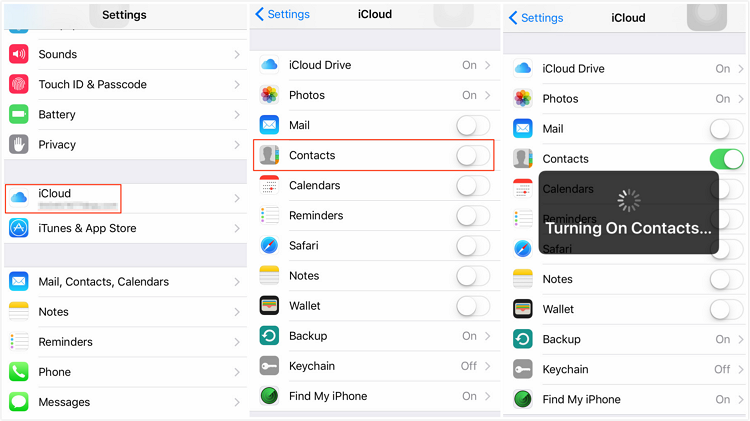
For syncing other data types, you can use steps similar to the ones we have listed above.
The two methods we have outlined above will help you to transfer iCloud to new phone. However, they are not perfect. When using the first method, you will have to transfer all the data available in iCloud or nothing. You cannot transfer just the data you need. While using the second method, you only get to sync limited data types which iCloud supports. As an iPhone user, you will want to transfer more data such as WhatsApp and text messages which are more important. Sometimes, you may want to transfer the data selectively.Also Read:Top 6 Best Vumoo Alternative Sites for You to Watch and Download Movies 2019
Also Read:How to Fix AC3 Audio Format Not Supported Error in MX Player
Also Read:How to Add Background Music to Video Online for Free
Also Read:10 Best Free Audiobook Apps for Your iPhone or iPad in 2019
Also Read:How to take a screenshot on any Android phone
Also Read:Top 7 Best Free DVD Burner for Mac You Should Know | 2019 Edition
Also Read:How to Download Twitch Videos for Free
Also Read:How to Access and Unlock Android Phone with Broken Screen
So, is there a way to transfer what you need from iCloud to your new iPhone? Let's find out.
Sponsor ads:
Gihosoft Free iPhone Data Recovery:https://www.gihosoft.com/iphone-data-recovery-free.html
Gihosoft iPhone Data Recovery Free
Free iPhone Data Recovery Software for Windows/Mac
Recover up to 12+ types of files, including contacts, SMS, photos, WhatsApp, Viber, notes, etc.
Restore lost data from iOS devices directly or from iTunes and iCloud backup
Recover iPhone data lost due to iOS upgrade/jailbreak, accidental deletion, device lost or broken
Support all the latest iPhone, iPad and iPod Touch
Both Free and Pro version.
If you lost data after you updated to a new iPhone, you can always use Gihosoft iPhone Data Recovery to get the data back from the old iPhone or backup.You may also like: iphonerecovery.com
If you use android phones, please choose Gihosoft Android Data Recovery.
With Gihosoft Android Data Recovery, no longer afraid of data loss!
Must read:Youtube video downloader for pc
Gihosoft RePicvid Free Photo Recovery Software provides a free photo recovery software for windows to help users recover the deleted or lost photo for free.
Jihosoft Android Data Recovery: the best Android Data Recovery software for Windows and Mac to recover deleted contacts, messages, photos, videos, WhatsApp and etc from Android devices.Tips:How to transfer messages from iPhone to iPhone
jihosoft Free iPhone Data Recovery

No comments:
Post a Comment