2/28/2019

Fix for “iTunes Not Responding on Windows 10” Issue 2019


Do you know what to do if your iTunes for Windows 10 or earlier won’t open, stop responding, crashes or unexpectedly quits? If you don’t know what to do, then you’ll find this article very enriching and informational.
Nevertheless, before we dive into the solutions for “iTunes not responding Windows 10” problems, let’s look at a complaint made by an iTunes user as regards to this issue.

Also Read:How to Remove RAR Password Online in Windows without Software 2019

Also Read:Top 15 Best Sites Like FMovies for You to Download Movies and TV Shows 2019

“I don't know if Windows 10 updated today but now, if I open iTunes, it freezes and won't let me make any selections. I have to close it through task manager and it seems that it drives disk usage way up. I am using an HP Laptop. Any help would be appreciated. – Adimike55"
The problem narrated above by Adimike55 can be resolved using various solutions and strategies. We shall be discussing the best and easiest solution first, and then we will add other likely solutions.

Other Common Fixes for “iTunes Not Responding Windows 10”

Here are common ways to troubleshoot “iTunes not responding Windows 10”.
#1. Run iTunes on Windows 10 as An Administrator

Step 1: Close your frozen iTunes software, if it does not respond, close it with Task Manager.

Step 2: Reboot your PC, then right-click the iTunes icon on your desktop.

Step 3: Select “Run as administrator” from the drop-down menu.


#2. Run iTunes in Safe Mode

The reason for running iTunes in safe mode is to isolate iTunes from interferences caused by third-party plug-ins. Here are the steps:

Step 1: Hold down the Shift and Control keys on your keyboard while opening iTunes.

Step 2: You’ll see a notification “iTunes is running in safe mode”. This means that all the plug-ins that could have been causing an error in starting iTunes have been temporally disabled.


#3. Reinstall QuickTime

QuickTime is one important component of iTunes that when it’s not functioning properly can cause “iTunes crashing Windows 10”. But you can repair it by following these steps:

Step 1: Go to your Windows 10 Control Panel. You can find the Control Panel by searching for it on the Search bar.

Step 2: Click “Programs and Features > QuickTime”.

Step 3: Click “QuickTime” to uninstall it. Then, go to https://support.apple.com/downloads/quicktime to download and reinstall it.


#4. Restart iTunes, iPhone, and Computer

Does this sound too easy to solve the big problem right? However, this option may be the perfect solution you need.

To restart your Windows PC:

Step 1: Click on the Windows icon on the left-hand side of your Windows.

Step 2: Then click the “Switch” icon and select “Restart”.

Restarting iPhone and iTunes does not take much hassle as they require you to simply hold down the power button for a while, and close the iTunes software respectively.
Part 3. The Main Reason for “iTunes Not Responding Windows 10”

If your iTunes software is not responding, then the common reasons for this problem may include:


Corrupt or virus/malware infected iTunes software.


Over long and usage of Windows 10 PC, iTunes or iPhone without restarting or rebooting it.


Corrupt iTunes component software such as QuickTime.


Too many iTunes junk and redundant files.
You may also like:Sponsor ads:

Gihosoft Free iPhone Data Recovery:https://www.gihosoft.com/iphone-data-recovery-free.html

Gihosoft iPhone Data Recovery Free

Free iPhone Data Recovery Software for Windows/Mac

Recover up to 12+ types of files, including contacts, SMS, photos, WhatsApp, Viber, notes, etc.

Restore lost data from iOS devices directly or from iTunes and iCloud backup

Recover iPhone data lost due to iOS upgrade/jailbreak, accidental deletion, device lost or broken

Support all the latest iPhone, iPad and iPod Touch

Both Free and Pro version.

If you lost data after you updated to a new iPhone, you can always use Gihosoft iPhone Data Recovery to get the data back from the old iPhone or backup.You may also like: iphonerecovery.com

If you use android phones, please choose Gihosoft Android Data Recovery.

With Gihosoft Android Data Recovery, no longer afraid of data loss!

Must read:Youtube video downloader for pc

Gihosoft RePicvid Free Photo Recovery Software provides a free photo recovery software for windows to help users recover the deleted or lost photo for free.

Jihosoft Android Data Recovery: the best Android Data Recovery software for Windows and Mac to recover deleted contacts, messages, photos, videos, WhatsApp and etc from Android devices.Tips:How to transfer messages from iPhone to iPhone

jihosoft Free iPhone Data Recovery

Easily Fix iTunes Error 2001 When Restoring iPhone/iPad/iPod


1 Fix Error 2001 just by Correcting USB Connection

Using a different lightning cable can help correct iTunes error 2001, 4005, 4013, or 4014 because the error may be coming because of poor connection between iPhone and iTunes. How can you correct wrong USB connection?


Always use Apple’s original lightning cable to ensure a stable connection between iPhone and iTunes via PC.


Clean your iPhone charging port to remove any accumulated dirt.


Switch to a different USB port on your computer.
2 Completely Uninstall iTunes and Install its Latest Version

By removing iTunes and its related components from your PC and reinstalling it back, you can solve the iTunes error 2001.

Step 1: Go to Control Panel > Programs and Features.

Step 2: Enter “Apple” in the search bar and hit Enter. It will show you iTunes and its 5 related software.

Step 3: Uninstall iTunes and Apple software in the following order by clicking on it and choose “Uninstall”.


iTunes


Apple Software Update


Apple Mobile Device Support


Bonjour


Apple Application Support 32-bit


Apple Application Support 64-bit

Note: Don’t uninstall these components in a different order or only uninstall some of them. Or it might have unintended effects. Restart your computer and reinstall the iTunes here.

Tips

Since manually uninstalling iTunes has huge risk of damaging your computer, you can also try iMyFone TunesFix's "Full Uninstall" feature, which helps to uninstall iTunes and its related software in the right order without any risk.


3 iTunes Error 2001 Fix with Hard Reset

Hard resetting (force restarting) an iPhone doesn’t erase your precious data, it only makes a frozen iPhone come back to its normal state.

Here are the steps to hard reset your iPhone:


For iPhone X, 8 Plus, 8 and 7 Plus: Press the “Volume Up” button and quickly release it. Press “Volume Down” button and quickly release it. Press and hold the “Side” button until you see the Apple logo.


For iPhone 6 Plus and 6s Plus: Press and hold the “Home” button and the “Sleep/Wake” button until Apple logo appears.


For iPhone SE, 5s, 5c, 4s, 3GS: Press and hold the “Power” button and the “Home” button until your iPhone reboots.


4 Change Battery to Troubleshoot iTunes Error 2001

A disconnected iPhone battery has caused iTunes unknown error 2001 as many users have reported. The best way to tackle such issues is to visit an Apple store and ask a technician to fix your disconnected iPhone battery.
The Causes of iTunes Restore Error 2001

There are a few causes of iTunes error 2001, and we’ve made a list of these possible causes in the following bullet points.


There is a higher possibility of experiencing “iTunes error 2001” if your iTunes is outdated.


iPhone users with fake iPhone USB cable experience iTunes error 2001 when connecting their device to PC for an update.


A software glitch can cause iTunes error 2001 especially when iPhone is jailbroken.

However, all these possible causes listed above are speculations because they’re not factual. Giving the fact that we don’t actually know the major cause of error 2001 in iTunes, we shall be giving you some tips that have worked for most iTunes users.Sponsor ads:8 Best PDF Reader & Editor Apps for iPhone and iPad in 2019
Sponsor ads:How to Access and Unlock Android Phone with Broken Screen
Sponsor ads:How to Remove Duplicate Contacts on iPhone and Android Quickly
Sponsor ads:How to Download & Save YouTube Videos to iPhone’s Camera Roll
Sponsor ads:Best 2 Free Methods to Fix Slow USB Transfer Speeds


Sponsor ads:

Gihosoft Free iPhone Data Recovery:https://www.gihosoft.com/iphone-data-recovery-free.html

Gihosoft iPhone Data Recovery Free

Free iPhone Data Recovery Software for Windows/Mac

Recover up to 12+ types of files, including contacts, SMS, photos, WhatsApp, Viber, notes, etc.

Restore lost data from iOS devices directly or from iTunes and iCloud backup

Recover iPhone data lost due to iOS upgrade/jailbreak, accidental deletion, device lost or broken

Support all the latest iPhone, iPad and iPod Touch

Both Free and Pro version.

If you lost data after you updated to a new iPhone, you can always use Gihosoft iPhone Data Recovery to get the data back from the old iPhone or backup.You may also like: iphonerecovery.com

If you use android phones, please choose Gihosoft Android Data Recovery.

With Gihosoft Android Data Recovery, no longer afraid of data loss!

Must read:Youtube video downloader for pc

Gihosoft RePicvid Free Photo Recovery Software provides a free photo recovery software for windows to help users recover the deleted or lost photo for free.

Jihosoft Android Data Recovery: the best Android Data Recovery software for Windows and Mac to recover deleted contacts, messages, photos, videos, WhatsApp and etc from Android devices.Tips:How to transfer messages from iPhone to iPhone


jihosoft Free iPhone Data Recovery

Why My iPad Won’t Connect to WiFi? Here Is The Top 10 Fixes! (2019)

The new iOS update can cause a bit of problems maintaining a stable Wi-Fi connection. You can connect to a Wi-Fi network that previously worked perfectly only to break suddenly in the middle of downloading an app or updating one. If this is happening to your iPad, we have a few solutions that will help you own a stable Wi-Fi network and remain connected to it.
Begin with the first solution and work your way through them until you find the one that works.
  • 1. Restart Your Router and Make Sure You Are Within Range
  • 2. Reset Your iPad Network Settings
  • 3. Update The Router’s Firmware
  • 4. Reset Your iPad’s Wi-Fi Connection
  • 5. Check & Reenter Your Wi-Fi Password
  • 6. Forget The Network and Rejoin
  • 7. Turn Airplane Mode on/off
  • 8. Force Restart Your iPad
  • 9. Update iPad to The Latest iOS Version
  • 10. Custom DNS on Your iPad
  • Tip: Take Care of iPad Data When It Won’t Connect to Wi-Fi

1. Restart Your Router and Make Sure You Are Within Range

Before you start thinking that the problem is about the device, you need make sure the router is working correctly. One of the ways you can do that is to restart the router. It is possible that the router is unable to transmit over the 2.4 GHz or 5 GHz frequency block. To restart it, look for the red button on the router and press it. Wait about 2 minutes after restarting the router, then you can try to connect again.
Another reason your iPad could be failing to connect to Wi-Fi is that your device may be out of range. If the device is far from the router, change your location to see if the connection can improve.

2. Reset Your iPad Network Settings

If you are certain that the problem is not due to the router, you may need to reset the iPad’s network settings. To do that, follow these very simple steps:
  1. Open the settings on your iPad and then tap on “General”.
  2. Tap on “Reset” and then click on “Reset Network Settings”.
  3. Now rejoin the network and then try connecting to it again.
reset-ipad-network-settings

3. Update The Router’s Firmware

If you have verified that your router is working correctly and you have reset the network setting on your iPad but still can’t connect, you may need to ensure that the router has the latest firmware installed on it.

Sponsor ads:6 Best Running Apps For iPhone & Apple Watch to Keep Your Fitness

Sponsor ads:How to Use Motorola Migrate for Transferring Data

Sponsor ads:How to Fix Insufficient Storage Available Problem on Android
To update the firmware on your router, you need to check the device manually since different manufacturers will have different methods to do it. You should also check the manufacturer’s website for the instructions.
router-firmware-update

4. Reset Your iPad’s Wi-Fi Connection

Resetting your iPad’s Wi-Fi connection may also help to fix the problem if you are still unable to connect to it. The following simple steps will help you reset your iPad WiFi connection:
  1. Go to Settings and then tap on Wi-Fi.
  2. Slide the button to OFF to turn off Wi-Fi.
  3. Wait a few seconds and then switch it on again.
  4. Now check to see if you can connect to Wi-Fi.
reset-ipad-wifi-connection

5. Check & Reenter Your Wi-Fi Password

If you are unable to connect to Wi-Fi after joining a network, it is possible that you may enter the wrong password. Passwords can be difficult to remember especially when they have a combination of numbers and letters. Check to ensure that you are entering the correct password.
enter-wifi-password

6. Forget The Network and Rejoin

It is also possible that sometimes a software bug can interfere with the connection between your iPad and the router. In this case, you need to forget a network and then rejoin. If you suspect that this connection may have been tampered with in some way, follow these simple steps to forget and rejoin a network:
  1. Open the Settings app on your iPad.
  2. Tap on “Wi-Fi”.
  3. Next to the Network you’d like to forget, tap on the information button.
  4. Tap “Forget this Network” at the top of the screen.
  5. After a while, the network will reappear in the main Wi-Fi list. Select it and log in if you need to.
forget-wifi-network-ipad
You can then open a web page in Safari to check if the network is working correctly.

7. Turn Airplane Mode on/off

Toggling Airplane mode on and off has also been known to work for network related problems. Try it to fix this Wi-Fi problem.
  1. Open the Settings app on your iPad.
  2. Turn on Airplane Mode.
  3. Wait a few seconds and then turn off Airplane Mode again.
turn-on-off-ipad-airplane-mode

8. Force Restart Your iPad

If all the above troubleshooting options have not worked to fix your troublesome Wi-Fi connection, you can force restart the iPad to see if refreshing the entire device can help. Follow these simple steps to force restart your iPad:
  1. Press and hold the top or side button on your device until you see the slider on the screen.
  2. Drag the slider to turn off the device completely.
  3. Then simply press and hold the top or side button until the device turns on again and you see the Apple Logo.
restart-ipad

9. Update iPad to The Latest iOS Version

A device that is running a version of iOS that is not up to date may fail to work as expected including being unable to connect to a Wi-Fi network. This is why it is a good idea to update the iPad to the latest version. To do that, plug in the device into a power source and then follow these simple steps:
  1. Tap on Settings > General > Software Update.
  2. If an update is available, tap “Download and Install”. If you see a message saying you need to temporarily remove some apps since iOS needs more space, tap “Continue” or Cancel”. Any removed apps will be reinstalled once the update is complete.
  3. Tap “Install” and wait for the update to be installed on your device.
iPad-Software-update

10. Custom DNS on Your iPad

You can also try to change the Custom DNS setting if the problem persists. Here’s how to do that:
  1. Go to settings on your iPad and then tap on Wi-Fi.
  2. Click information button next to the network you’re trying to connect to and change the DNS to 8.8.8.8 or another secure DNS.
custom-dns-ipad

Tip: Take Care of iPad Data When It Won’t Connect to Wi-Fi

Before attempting to fix any problem with your device including the Wi-Fi connection problem, you’d better back up the data on your iPad. This is to guard against data loss while fixing the device. The best way to back up all the data on your device is to use a backup tool like iMyFone D-Port Pro. This program can be used to easily backup and restore data on your device and even export data from the iPad to the computer.
Sponsor ads:
Gihosoft iPhone Data Recovery Free
Free iPhone Data Recovery Software for Windows/Mac
Recover up to 12+ types of files, including contacts, SMS, photos, WhatsApp, Viber, notes, etc.
Restore lost data from iOS devices directly or from iTunes and iCloud backup
Recover iPhone data lost due to iOS upgrade/jailbreak, accidental deletion, device lost or broken
Support all the latest iPhone, iPad and iPod Touch
Both Free and Pro version.
If you lost data after you updated to a new iPhone, you can always use Gihosoft iPhone Data Recovery to get the data back from the old iPhone or backup.You may also like: iphonerecovery.com
If you use android phones, please choose Gihosoft Android Data Recovery.
With Gihosoft Android Data Recovery, no longer afraid of data loss!
Gihosoft RePicvid Free Photo Recovery Software provides a free photo recovery software for windows to help users recover the deleted or lost photo for free.
Jihosoft Android Data Recovery: the best Android Data Recovery software for Windows and Mac to recover deleted contacts, messages, photos, videos, WhatsApp and etc from Android devices.Tips:How to transfer messages from iPhone to iPhone

How to Factory Unlock AT&T iPhone iOS 12

How to Factory Unlock AT&T iPhone iOS 12
What is AT&T?

AT&T (American Telephone & Telegraph) is the world’s largest telecommunication company, the second largest provider of mobile telephone service, and the largest provider of fixed telephone services in the world. As the second largest provider of mobile telephone services, AT&T is one of the major providers of Apple’s mobile devices, and all such iPhone come with an AT&T carrier lock. Therefore, it’s necessary to know how to unlock AT&T iPhone iOS 12.


Part 1: Why is My AT&T iPhone Locked?


Part 2: How to Unlock AT&T iPhone?


Part 3: How to Unlock AT&T iPhone Screen Lock?


Part 4: Other Global Cell Phone Carrier Networks
Why is My AT&T iPhone Locked?

AT&A as a major provider of Apple’s iPhone goes into a contract with Apple Inc. which stipulates that all iPhones distributed through AT&T marketing services will be AT&T carrier locked. This simply means that if you buy an iPhone from AT&T, it will be locked to other networks like T-Mobile, and the mobile network will not work with any other networks SIM other than AT&T.

However, if your iPhone is AT&T locked, you can’t unlock your iPhone to use any other network carrier SIM card by following the process below to request an unlocking code from AT&T to unlock AT&T iPhone iOS 12.
How to Unlock AT&T iPhone

In the following paragraphs, we shall be sharing some tips on how to unlock an AT&T locked iPhone.
#1. Requirements for Unlocking AT&T iPhone iOS 12

Before we share the process of unlocking AT&T iPhone, we would like to share the requirements and restrictions that you need to know.


The iPhone must be AT&T locked.


The iPhone must be an IMEI blacklisted iPhone.


The iPhone must not be associated with fraudulent or illegal activities.


The cost of buying the iPhone from AT&T with other iPhone services must have been paid in full.


The iPhone must only be active on your AT&T customer’s account.


The 14 days buyer’s remorse period must have been terminated before requesting to unlock your iPhone.


#2. How to Request An Unlocking Code from AT&T

Here are the steps to request an unlocking code from AT&T:

Step 1: Visit the page https://www.att.com/deviceunlockSponsor ads:MBR vs GPT: Which One is Better?
Sponsor ads:Download Twitch Videos for Free

Step 2: Read through the eligibility requirements for unlocking AT&T iPhone iOS 12.

Step 3: Agree to the eligibility requirements, then complete and submit the request form.

Step 4: You’ll receive a confirmation email shortly after submitting your request. Go your mailbox and click on the confirmation email link sent to you.

Step 5: Wait for AT&T to respond to your request with two business days.

Step 6: Once AT&T has sent you the instruction to unlock your carrier locked iPhone (i.e. if you’re approved), you can follow it to unlock AT&T iPhone 6... and submit them.


As we earlier mentioned, your request for an AT&T unlocking code will be attended to by AT&T customer service personnel in less than two business days. However, this doesn’t mean that it’s a guaranteed success because the mobile network carrier company has the right to drop your request.Sponsor ads:

Gihosoft Free iPhone Data Recovery:https://www.gihosoft.com/iphone-data-recovery-free.html

Gihosoft iPhone Data Recovery Free

Free iPhone Data Recovery Software for Windows/Mac

Recover up to 12+ types of files, including contacts, SMS, photos, WhatsApp, Viber, notes, etc.

Restore lost data from iOS devices directly or from iTunes and iCloud backup

Recover iPhone data lost due to iOS upgrade/jailbreak, accidental deletion, device lost or broken

Support all the latest iPhone, iPad and iPod Touch

Both Free and Pro version.

If you lost data after you updated to a new iPhone, you can always use Gihosoft iPhone Data Recovery to get the data back from the old iPhone or backup.You may also like: iphonerecovery.com

If you use android phones, please choose Gihosoft Android Data Recovery.

With Gihosoft Android Data Recovery, no longer afraid of data loss!

Must read:Youtube video downloader for pc

Gihosoft RePicvid Free Photo Recovery Software provides a free photo recovery software for windows to help users recover the deleted or lost photo for free.

Jihosoft Android Data Recovery: the best Android Data Recovery software for Windows and Mac to recover deleted contacts, messages, photos, videos, WhatsApp and etc from Android devices.Tips:How to transfer messages from iPhone to iPhone

jihosoft Free iPhone Data Recovery

How to Fix iTunes Error 2005 When Restoring or Updating iPhone/iPad/iPod 2019

How to Fix iTunes Error 2005 When Restoring or Updating iPhone/iPad/iPod 2019
Updating or restoring iPhone, iPad or your iPod touch can ordinarily take a bit of time. However, iTunes error 2005 can make it take even longer. If you have been having problems with updating or restoring your iPhone, iPad or iPod touch because of iTunes error 2005, here are some tips that you can employ to solve the issue.
What is iTunes Error 2005?
iTunes error 2005 normally appears when trying to update or restore the iOS on your iPhone, iPad or iPod. Users have experienced a lot of issues with tis error especially when trying to upgrade to iOS 11 or downgrade to iOS 10.


Common Solutions to iTunes Error 2005

There are some general fixes that you can apply to solve the iTunes error 2005. They include the following:


1 Disable Anti-Virus Software:

A lot of the time, the errors you are experiencing may be as a result of the antivirus software you have installed on your pc or mac. You can try disabling the antivirus program. Then initiate the restore or update process again and see if it works.
2 Allow iTunes Through Firewall:

Your firewall may block some files from accessing data and cause this error. If this is the case, you can either allow iTunes over the firewall or simply disable it and restart the restore or update process.
3 Check Internet Connectivity:

If your VPN setting on your Wi-Fi network does not allow connection with the validation server, it can also lead to iTunes error 2005. You can get around this by trying some other Wi-Fi network with no proxy settings when you try the restore or update process again.
4 Update iTunes to the Latest Version:

If all the other tips have failed to work, you can check your iTunes to see if it is the latest version. At times, if you have an outdated version, it can cause the errors complained of to occur.


In order to check your iTunes version on mac: Open iTunes > Menu > iTunes > Updates.


For windows: Open iTunes > Menu > Help > Check for Updates.

Note: If the menu bar isn’t showing, hold down the Ctrl and B keys to make it appear.
Change Host Files to Fix iTunes Error 2005

You can also try to deal with the error 2005 by changing your iTunes host files. In order to do this, you need to follow these steps closely:

Step 1: Navigate to your iTunes “hosts” file.


For windows, you can find the file in “C:/Windows/System32/drivers/etc/”.


For mac, you can find the file in: “/etc/”.


Step 2: Open the host file using notepad or any other text editor.

Step 3: Find the line: “74.208.105.171 gs.apple.com”, delete the line and save the file without changing its name.Sponsor ads:

Gihosoft Free iPhone Data Recovery:https://www.gihosoft.com/iphone-data-recovery-free.html

Gihosoft iPhone Data Recovery Free

Free iPhone Data Recovery Software for Windows/Mac

Recover up to 12+ types of files, including contacts, SMS, photos, WhatsApp, Viber, notes, etc.

Restore lost data from iOS devices directly or from iTunes and iCloud backup

Recover iPhone data lost due to iOS upgrade/jailbreak, accidental deletion, device lost or broken

Support all the latest iPhone, iPad and iPod Touch

Both Free and Pro version.

If you lost data after you updated to a new iPhone, you can always use Gihosoft iPhone Data Recovery to get the data back from the old iPhone or backup.You may also like: iphonerecovery.com

If you use android phones, please choose Gihosoft Android Data Recovery.

With Gihosoft Android Data Recovery, no longer afraid of data loss!

Must read:Youtube video downloader for pc

Gihosoft RePicvid Free Photo Recovery Software provides a free photo recovery software for windows to help users recover the deleted or lost photo for free.

Jihosoft Android Data Recovery: the best Android Data Recovery software for Windows and Mac to recover deleted contacts, messages, photos, videos, WhatsApp and etc from Android devices.Tips:How to transfer messages from iPhone to iPhone

jihosoft Free iPhone Data Recovery

Restore iTunes Library from iPod to New Computer via iTunes


Restore iTunes Library from iPod to New Computer via iTunes

There are several methods for restoring iTunes library from iOS 12 iPod to a new computer, but we’ve chosen to discuss iTunes method of restoring iTunes library from iPod to a new Windows computer or Mac.

Before we continue with the steps of restoring iTunes library from iPod, we would like you to note that if you’ve not authorized your new computer on iTunes, you may not be able to access your iPod media library on iTunes.

Therefore, here is how to authorize a Mac or PC before restoring your iTunes library:


Open iTunes.


Sign in with your Apple ID.
On Mac: Go to the menu bar at the top of your computer screen to choose “Account > Authorizations > Authorize This Computer".
On Windows PC: Go to the menu bar at the top of your computer screen to choose “Account > Authorizations > Authorize This Computer". If you don’t see the menu bar, press Control + B on your keyboard.


Enter your Password and click “Authorize”.
Steps to Restore iTunes Library from iPod to New Computer with iTunes


Download and install the latest version of iTunes on your new computer.


Launch iTunes on your PC and connect your iPod to your PC using Apple’s original lightning cable. Your connected device will appear as an icon on the upper-left corner of iTunes windows.


Click on your iPod icon, locate Summary on the left sidebar of the iTunes window. You can check the box next to the items you want to back up by clicking on them. You can also choose whether you want to back up your entire library or choose a file.


Click “Apply” to back up the selected media files.


Repeat step 4 to back up different types of media files on your iOS 12 iPod.


After backing up your iPod to your PC using this method, you can search for your new iTunes library location by following these steps:


Mac: Click desktop to make sure you’re in Finder. Then choose “Go > Home”, and double-click the Music folder.


Windows: Navigate to “\Users\username\My Music\iTunes”.
Disadvantages of Using iTunes to Restore iTunes Library.

This method comes with numerous disadvantages which include:


The method is complicated and full of limitations and restrictions.


You can only transfer purchased files using this process.


iTunes allows you to authorize only 5 computers or less.


Non-purchased files will not be restored using iTunes. Sponsor ads:


Gihosoft Free iPhone Data Recovery:https://www.gihosoft.com/iphone-data-recovery-free.html


Gihosoft iPhone Data Recovery Free


Free iPhone Data Recovery Software for Windows/Mac


Recover up to 12+ types of files, including contacts, SMS, photos, WhatsApp, Viber, notes, etc.


Restore lost data from iOS devices directly or from iTunes and iCloud backup


Recover iPhone data lost due to iOS upgrade/jailbreak, accidental deletion, device lost or broken


Support all the latest iPhone, iPad and iPod Touch


Both Free and Pro version.


If you lost data after you updated to a new iPhone, you can always use Gihosoft iPhone Data Recovery to get the data back from the old iPhone or backup.You may also like: iphonerecovery.com


If you use android phones, please choose Gihosoft Android Data Recovery.


With Gihosoft Android Data Recovery, no longer afraid of data loss!


Must read:Youtube video downloader for pc


Gihosoft RePicvid Free Photo Recovery Software provides a free photo recovery software for windows to help users recover the deleted or lost photo for free.


Jihosoft Android Data Recovery: the best Android Data Recovery software for Windows and Mac to recover deleted contacts, messages, photos, videos, WhatsApp and etc from Android devices.Tips:How to transfer messages from iPhone to iPhone


jihosoft Free iPhone Data Recovery

2/27/2019

How to Delete Movies from iTunes on PC/Mac?

You may have downloaded some movies that show up on your iTunes list and now you want to delete them. Fortunately, iTunes allows you to delete content in order to effectively manage your iTunes library. The process to do this is quite easy as you simply need to select the type of content (in this case: movies) and remove it from your iTunes library.
  • Part 1: How to Delete Movies from iTunes on Mac/Windows?
  • Part 2: How to Delete Purchased Movies from iTunes Account?
  • Part 3: Best Tool to Manage Movies for iDevice/iTunes hot

How to Delete Movies from iTunes on Mac/Windows?

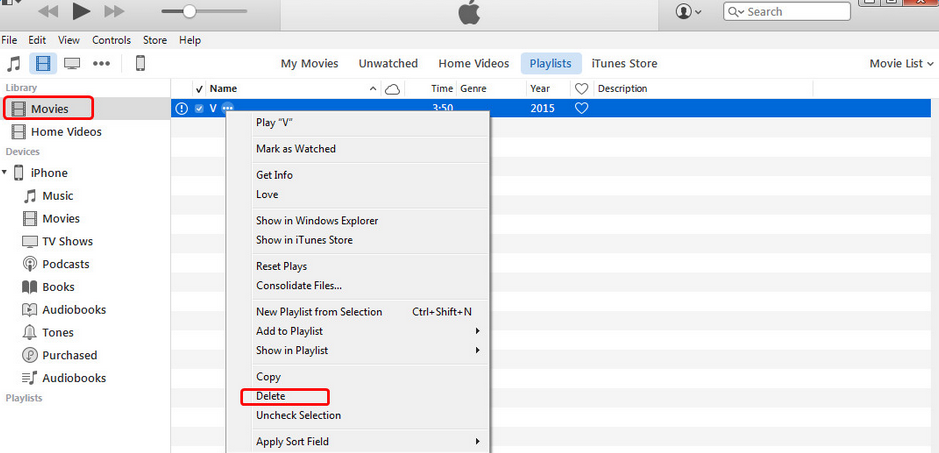
Deleting movies from iTunes is similar to deleting any other content. You will need to navigate to the respective section on iTunes, use the right-click context menu, and then simply delete the item you no longer wish to keep. Follow these instructions:
  1. Open iTunes on your Windows PC or Mac.
  2. Once iTunes is launched, find and click on Movies from the drop-down menu. Your movie library will open. This section is available at the top-left corner of iTunes.
  3. Now find the movie that you wish to delete. There are many filters you can use to find the item quickly, these include Downloaded, Home Movies, Recently Added, etc.
  4. Once you have found the movie that you wish to delete, right-click on it and then select ‘Delete’ option from the context menu. A confirmation message may appear, confirm your action to proceed.Sponsor ads:File sharing sites
    Sponsor ads:Best 7 Music Players for PC Free Download 2019
delete-videos-by-itunes
  • Depending on the type of movie, there are different options you will need to use in order to delete it. If it is a ‘Home Movie’ that you didn’t purchase from iTunes Store and simply added to your iTunes library from your computer, then you will need to select ‘Delete’ option.
  • If you have downloaded the movie, then you will need to select ‘Remove download’ option to delete the movie.

How to Delete Purchased Movies from iTunes Account?

You have purchased a movie via iTunes Store and then transferred it to your iDevice to watch it. After deleting the movie from your iDevice, you will still find that movie in your iTunes library. It can be a bit annoying because you already watched the movie and no longer want to see it in your iTunes library. While you cannot actually delete the purchased movie from your iTunes account, you can hide it so that it does not appear in the Movies section of iTunes.
Follow these instructions:
  • First, make sure that the movie is deleted locally. To do this, open iTunes, navigate to Movies section and then delete it via right-click or Delete key on your keyboard.
  • Now that you have deleted the movie locally, you may be surprised to see it still listed in iTunes. This is because the movie is still available on your iTunes account. You will notice a little cloud icon next to that movie.
hide_movies_itunes
  • Now as mentioned above, you cannot actually delete the downloaded movie, but you can hide it. To do this, simply select the movie again and press Delete button on your keyboard. This time, iTunes will prompt you to hide the content. Click ‘Hide Movies’ option when prompted and it will disappear from your iTunes library.

Sponsor ads:
Gihosoft iPhone Data Recovery Free
Free iPhone Data Recovery Software for Windows/Mac
Recover up to 12+ types of files, including contacts, SMS, photos, WhatsApp, Viber, notes, etc.
Restore lost data from iOS devices directly or from iTunes and iCloud backup
Recover iPhone data lost due to iOS upgrade/jailbreak, accidental deletion, device lost or broken
Support all the latest iPhone, iPad and iPod Touch
Both Free and Pro version.
If you lost data after you updated to a new iPhone, you can always use Gihosoft iPhone Data Recovery to get the data back from the old iPhone or backup.You may also like: iphonerecovery.com
If you use android phones, please choose Gihosoft Android Data Recovery.
With Gihosoft Android Data Recovery, no longer afraid of data loss!
Gihosoft RePicvid Free Photo Recovery Software provides a free photo recovery software for windows to help users recover the deleted or lost photo for free.
Jihosoft Android Data Recovery: the best Android Data Recovery software for Windows and Mac to recover deleted contacts, messages, photos, videos, WhatsApp and etc from Android devices.Tips:How to transfer messages from iPhone to iPhone